1. Getting started
Installing the Downloader app
- Install the Downloader app from the Google Play Store or the Amazon Appstore.
- Put the device into Developer Mode: go to Settings › My Fire TV › About, highlight your device's name and press OK 7 times.
- Press Back and choose Developer Options.
- Turn on ADB debugging.
- Turn on Install unknown apps for Downloader.
Install
- Download AvidViewer.apk: on your TV box, open the Downloader app and enter the code 2895338 in the URL box, or download it directly from
github.com/mavenmarty/avid-viewer/releases/latest. - Open the file and install it. You may need to allow installs from unknown sources for your browser or file manager.
- Every version is signed with the same key, so a new version installs over the old one and keeps your playlists, favorites and settings.
First start: the welcome screen
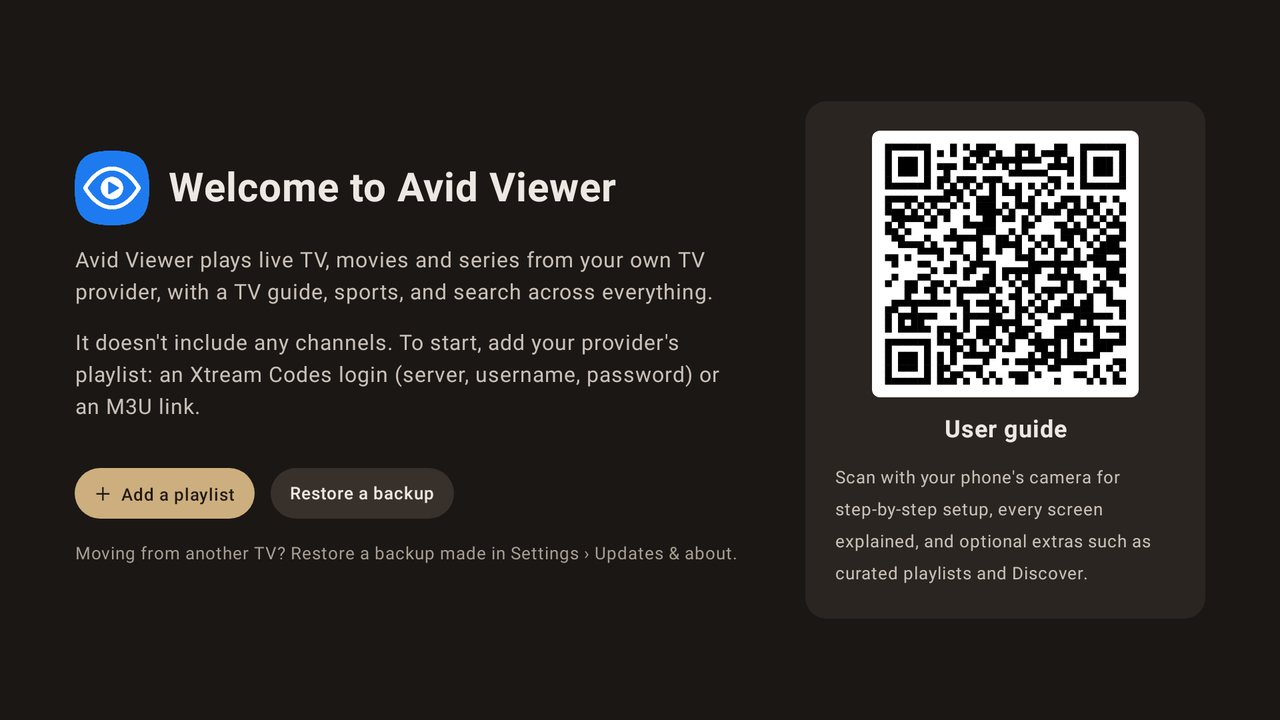
The first time you open Avid Viewer, and every time it starts while there are no playlists, it shows a welcome screen:
- + Add a playlist (highlighted): opens Settings › Playlists on the add form. See below.
- Restore a backup: opens Settings › Updates & about, for moving from another TV. See Backup & restore.
- User guide: scan the QR code with your phone's camera to open this guide.
Once a playlist has been added, the app opens on the TV Guide instead.
Add your first playlist
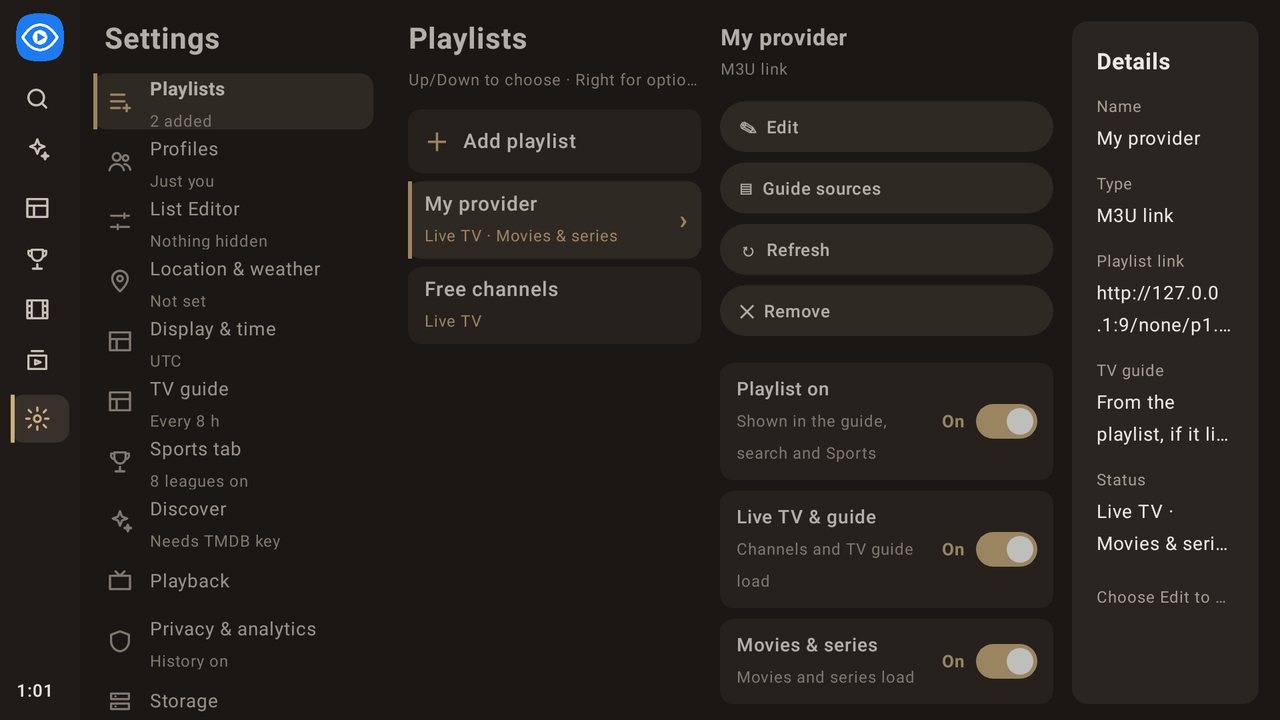
- Open Settings › Playlists and choose Add playlist.
- Pick the type:
- Xtream Codes: enter a playlist name, the Server (DNS) (for example
http://example.com:8080), your Username and Password. Live TV and the TV guide load from your login. - M3U link: enter a playlist name, the M3U playlist link and, optionally, a TV guide (XMLTV) link.
- Xtream Codes: enter a playlist name, the Server (DNS) (for example
- Choose which content to load (Live TV, Movies & series), then press Add playlist.
Your password is stored encrypted on the device (Android Keystore) and is never shown again.
Using the remote
- Arrows move the highlight. Hold an arrow to speed up (3, then 6, then 12 items per repeat).
- OK selects. Text boxes open the keyboard only when you press OK on them.
- Menu (or hold OK) opens options for the highlighted item.
- Back goes up one level, landing on the item that led there. On the full menu while on the TV Guide, Back shows Press Back again to exit; a second Back within about 2.5 seconds closes the app.
- Channel Up / Channel Down (or Page Up / Page Down) move a page at a time in the TV Guide and change channels in full screen.
- Channel and category lists wrap around. A single press past the last item goes to the first, and the reverse. Holding a button stops at the end, so a fast scroll doesn't fly past. Other lists (the main menu, the playlist list, Settings and poster grids) stop at the end.
- If a press ever finds nothing highlighted, the app puts the highlight back.
- Where you are: in every list, the row you're in (the screen in the main menu, the category, the settings section, the playlist) is raised with a blue bar down its left edge. Lists you're not in are slightly dimmed. For a choice, the current value has a blue outline and a ✓; the main action is a filled button. On/off settings are switches. A button that's working shows a spinner and waits.
2. Main menu
The menu on the left lists Search, Discover, TV Guide, Sports, Movies, Series and Settings. When the TV has more than one profile, the profile in use is shown at the top (its initial on its colour); OK on it opens Switch profile (see Profiles). A Kids profile's menu has only Search, TV Guide, Movies and Series. Picking a screen highlights its first item. The menu is always on screen: once you've chosen a screen it shrinks to icons on the far left, and the labels come back when you move onto it.
At the bottom of the menu you'll see:
- The clock and date (if Show clock is on).
- Current weather (if a postal code is set and Show weather is on).
- An Update x.y.z button when a new version is available.
When the TV has more than one profile, the app first asks Who's watching? (or opens the last profile used, if you chose that in Settings › Profiles). Then it opens on the TV Guide with the menu shown as icons, on:
- the last channel you watched, in its own category;
- if that channel is in ★ Favorites or one of your lists, that list (the channel can belong to another playlist);
- otherwise your first favorite, with ★ Favorites open;
- with no favorites, the first channel of the first category.
3. TV Guide
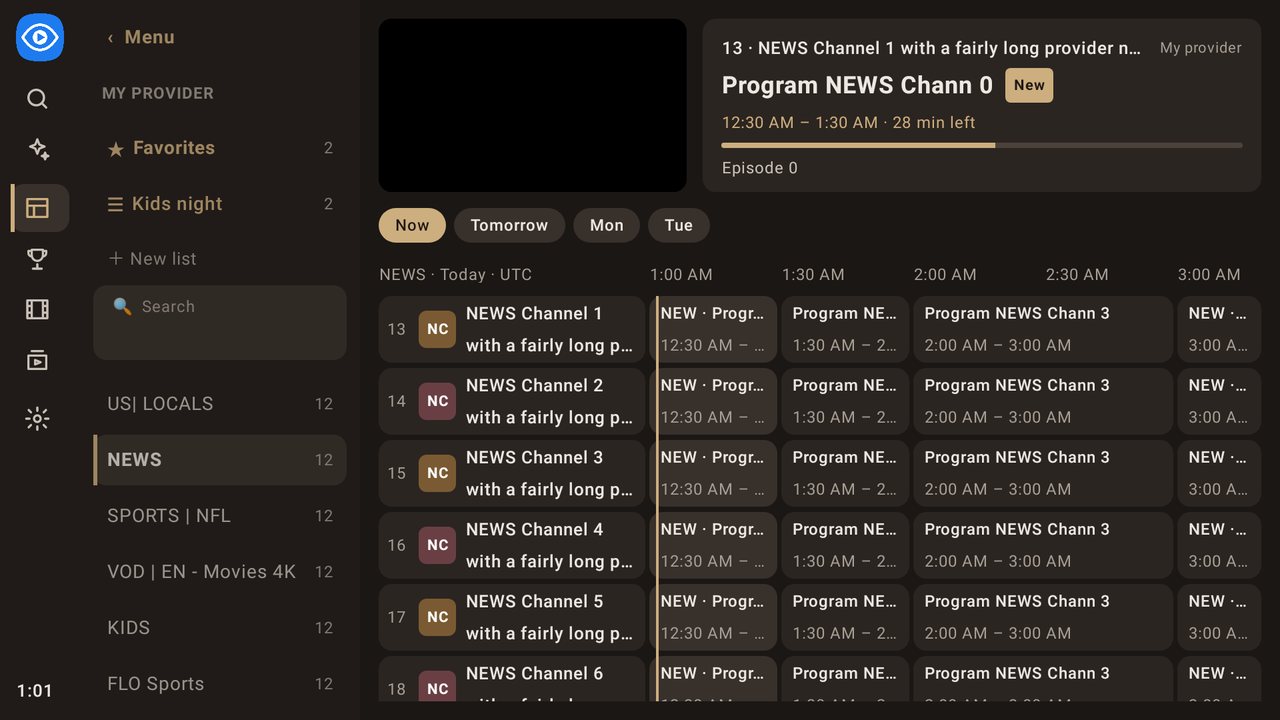
The TV Guide is the home screen for live TV. Next to the main menu it has:
- Playlist list: ★ Favorites, your own lists, then every playlist with live TV switched on. Press OK on a playlist to open its categories.
- Category list: the playlist's categories, with ‹ Menu, ★ Favorites, your lists, + New list and 🔍 Search at the top.
- The guide: the preview window and details panel at the top, the channel grid below.
The guide fills the screen. As soon as you've chosen a category and the highlight is in the guide (channels, programs or the preview), the main menu and the category list step aside: the guide shows 2 hours across the full width (2.5 hours while the category list is showing). Left from the channel names, or Back, brings them back, with your current category highlighted. Right from the category list goes to the first channel on screen (or opens another category, like OK). The row above the times always names the category.
Back and Left step back one layer at a time: from a channel to your current category in the category list, then to the playlist list (on that same category), then to the main menu. With only one playlist with live TV, the playlist list is skipped: from the categories, Back goes straight to the main menu. Holding Left doesn't skip layers, and inside the grid Left still moves through programs and time.
The guide grid
- The top shows a preview window and a details panel for the highlighted channel or program: channel number and name (plus the playlist name when you have more than one), the program title with a New tag for new episodes, the times with N min left and a progress bar (or starts in … for a later program), up to two lines about the show, and what's Next.
- Below it is a timeline grid: two-line channel names on the left, programs across 2 hours (full width) or 2.5 hours (with the category list), with a line marking "now". Above the times, the row names the category, the day and the time zone ("KIDS · Today · CST"). The columns sit on your clock's :00 and :30.
- Left/Right move between programs. Going past the last program in view scrolls the guide forward by half hours, as far as the guide has listings, up to 7 days. The guide doesn't scroll back before now (1.10.0): Left on the first program moves to the channel name, and Left again to the category list.
- The program airing now starts at the left edge; any part that has already aired isn't shown. There's no catch-up: OK plays the channel live.
- Day strip: when the guide reaches past today, a row of buttons sits above the times: Now, Tomorrow, then the next days (Sat, Sun…). OK on a day moves the guide to that day at the same time as now; Now comes back. The day on screen is filled in.
- Hold Left on a later time to jump straight back to now.
- Up/Down move one channel and land on the program airing at the same time, so the highlighted time stays put as you move between rows. Quick taps are counted, so a fast run of presses lands about where you'd expect, even in a category with thousands of channels.
- Up on the first channel moves to the day strip (when it's shown), then the preview window; Up again jumps to the last channel. Down on the last channel goes back to the first.
- CH+/CH− (Page Up/Down) move a full page and wrap around at the ends.
- OK on a channel or program starts it in the preview. OK again, or OK on the preview window, opens it full screen.
- Each category remembers where you were. A category you haven't opened yet starts at its first channel. Coming back to one you've visited highlights the channel you left, even if channels above it were hidden or the list refreshed; if that channel is gone, the nearest one is highlighted, not the top.
- The guide keeps its time. If you scroll ahead (to tonight, say), the guide stays on that time when you open full screen or another screen and come back.
- Back from full screen returns to the same channel and program, even far down a long category.
- In the category list, Up on ‹ Menu jumps to the last category, and Down on the last category returns to ‹ Menu.
Search in the guide
Highlight 🔍 Search in the category list (just below + New list) and press OK to type. Results appear as you type (after a short pause) and replace the guide. Part of a word is enough ("farg" finds Fargo), and words can come in any order; near matches (a small typo) follow the exact ones, as in Search. Results: Channels (with what's on now, and ▶ Preview / ▶ Full screen) and Programs on now or later (▶ Tune in / ▶ Channel). Search covers every playlist; choosing a result from another playlist moves the guide there. ✕ Clear search, just below, brings the guide back.
Channel options (Menu or hold OK on a channel)
- + Add to List…: choose ★ Favorites or one of your lists, and the picker adds the channel and closes. Lists it's already in are marked ✓; choosing one of those takes it out. + New list… makes a list with the channel in it.
- − Remove from [list]: when you're viewing Favorites or a list.
- ✎ Rename: give the channel your own name.
- ⇅ Re-order: move the channel within its category (see Re-ordering below).
- ⊘ Hide channel: hide it everywhere. You can bring it back in Settings › List Editor.
- Match guide…: pick the guide listings for this channel (see Matching a channel to the guide below).
Rename (channels, categories, lists, movie and series categories) opens with the keyboard up and the current name selected: type the new name and press Done on the keyboard to save. + New list works the same way. Cancel closes without saving. Either way the highlight goes back to the item you renamed.
When an item disappears (you hide a category, delete a list, take a poster off My List), the highlight goes to the item that took its place, never back to the main menu. The Menu button acts when you let it go.
Matching a channel to the guide
If a channel shows the wrong listings, or none, press Menu on it and choose Match guide…:
- The guide channels with the closest names come first. Type in Search guide channels to find others.
- Choose one to use its listings. ✓ marks the current match, and the dialog says whether it came from your provider or was matched by hand.
- Use provider's match undoes a hand match. No guide shows no listings for the channel.
- The guide downloads again a few seconds after a change. The list comes from the last guide download, so if it's empty, download the guide first (Settings › TV guide) or add a guide source.
Category options (Menu on a category in the left navigation)
- ✎ Rename, ⇅ Re-order, ⊘ Hide category.
Re-ordering
When you choose Re-order, a small help panel appears at the top right, over the preview window, so the list stays in view:
- ▲ ▼ move the item up or down (hold to move faster).
- ◀ moves it to the top; ▶ moves it to the bottom.
- OK or Back finishes, and the new order is saved.
While you're moving it, the item has a blue outline. A category shows its position (for example "4/27") and a channel shows ⇅ in place of its number. Channels move within whatever the guide is showing (a category, ★ Favorites or one of your lists), and channel numbers follow the new order.
Favorites and your lists
- ★ Favorites gathers channels from every playlist in one place and is always shown. Favorites, lists, renames, hidden channels and guide matches stay on the right channels when your provider adds, removes or reorders channels, and after restoring a backup.
- Your lists (for example "Kids" or "News") can also hold channels from any playlist. Make one with + New list or from Add to List.
- Press Menu on a list to Rename, Move up / Move down or Delete it. Deleting asks you to confirm; the channels stay in your playlists.
- Suggested near [your town]: at the top of Favorites, the app suggests channels from your playlists that look local to your postal code. Press + Add to List to keep one; the highlight moves on to the next suggestion. Hide suggestions is at the right of the heading: press ▲ from a suggestion to reach it. Dismissed channels aren't suggested again unless you restore them in Settings.
- Removing a channel from Favorites or a list (Menu › Remove, the Add to List picker, or hiding it) keeps the highlight on the channel that takes its place.
4. Full-screen playback
Live TV
- Up / Channel Up: previous channel. Down / Channel Down: next channel. Switching stays inside the current category, list or Favorites and wraps around at the ends.
- OK, Left, Right or Info: show the info bar (channel number and name, ★ if it's a favorite, playlist, what's on now with times, and Up next). It hides after 5 seconds.
- Menu: open Picture & sound (below), which also has + Add to List… for the channel you're watching.
- Back: return to the screen you came from.
Movies and episodes
- Left / Rewind: back 10 seconds. Right / Fast-forward: ahead 30 seconds.
- OK / Play-Pause: pause or resume.
- Up, Down or Info: show the progress bar.
- The progress bar appears when playback starts or you press a button, and hides 5 seconds after the last press. It shows "Loading…" while the video starts, and stays up while paused ("Paused · …").
- Stopping part-way saves your place for Resume.
- Menu: open Picture & sound (below).
Picture & sound
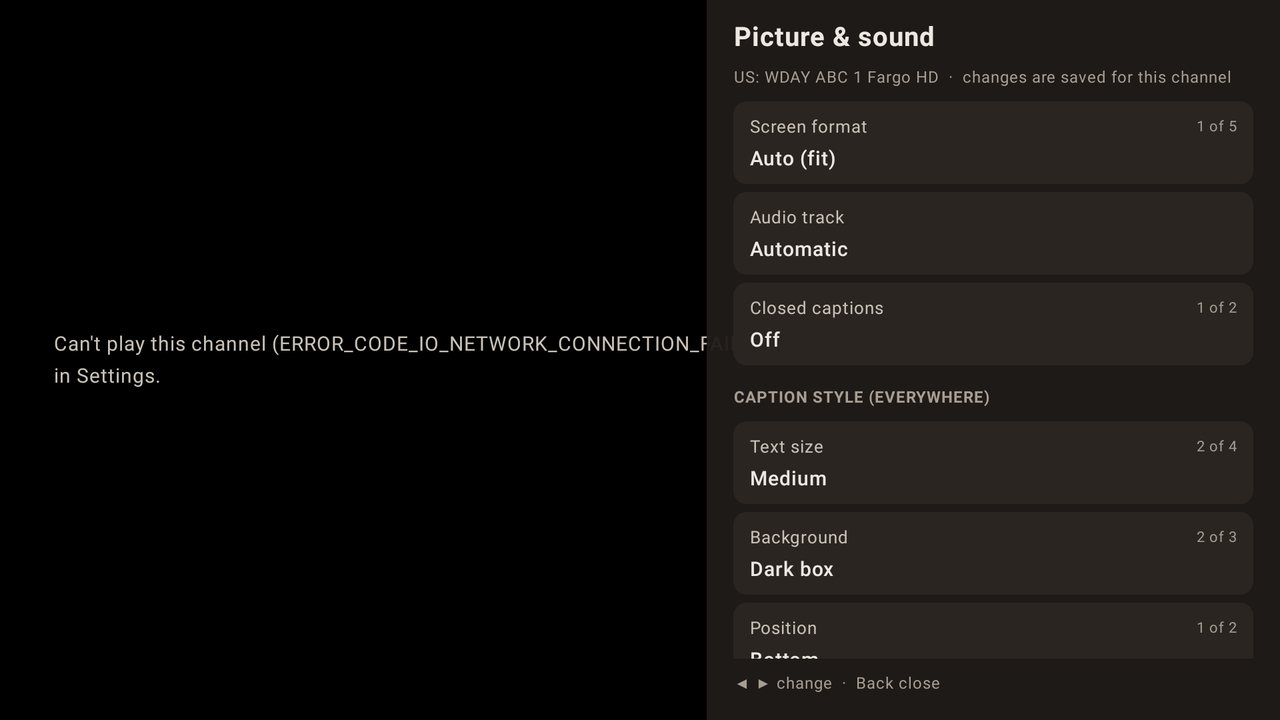
Press Menu while watching full screen. A panel opens on the right. ▲▼ move between rows, ◀▶ change a row's value (OK steps to the next value), and Back or Menu closes it.
- Screen format: Auto (fit), Fill screen (stretch), Zoom (crop edges), 16:9 or 4:3.
- Audio track: Automatic (the stream's own choice) or one of the stream's audio tracks, described in plain words, for example "English · Dolby Digital 5.1" or "Spanish · AAC Stereo · Secondary audio". Secondary audio (SAP) and described video are labeled when the channel sends them.
- Closed captions: Off, or a caption track: TV captions (CC1–CC4), digital captions or subtitles. If none have been found yet, On (when available) shows them as soon as they appear.
- Caption style (the same everywhere): Text size (Small, Medium, Large, Extra large), Background (None with outlined text, Dark box, Solid black) and Position (Bottom, Raised).
- Save changes for:
- This channel only: for a movie, this movie; for an episode, the whole series.
- All channels: the setting for everything.
- A channel's own choices win over the ones for all channels. Use the settings for all channels here clears this channel's own choices.
- + Add to List… (live TV): add the channel to ★ Favorites or one of your lists.
- Stream info (at the bottom of the panel): what the TV is getting right now.
- Video: picture size, codec (H.264, HEVC…), frame rate and bitrate, when the stream says.
- Download speed: how fast the stream is arriving, and what the stream needs.
- Buffered ahead: seconds of video already downloaded. Near 0 means a freeze is likely.
- Freezes here and Dropped frames on this channel so far, and the last problem with its likely cause.
- Send playback log to bugs@avidviewer.app.
Audio tracks and captions only appear when the stream carries them, so they vary from channel to channel.
5. Search
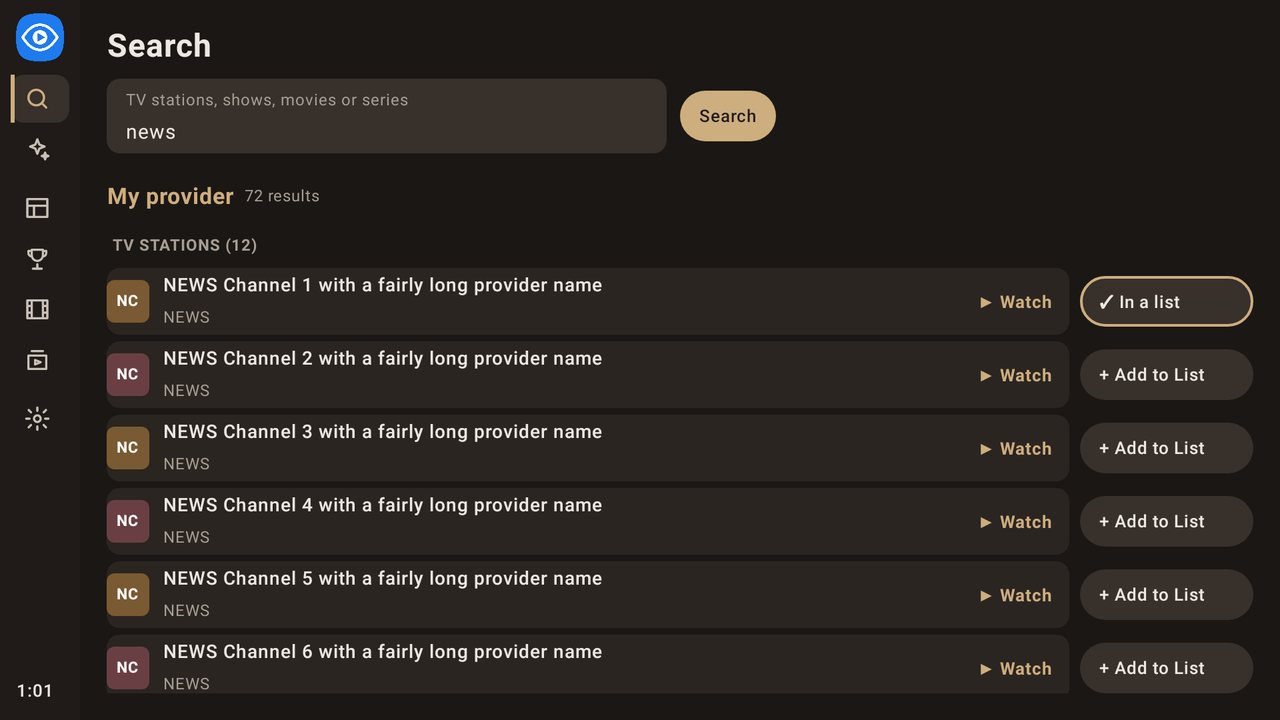
The Search screen searches every playlist at once: TV stations, programs in the TV guide (now and upcoming), movies and series.
- Results appear as you type, after a short pause. Pressing Search works too.
- Forgiving matching: part of a word is enough ("farg" finds Fargo), words can come in any order ("news fargo" finds "KVLY Fargo News HD"), and punctuation doesn't matter ("spider man" finds "Spider-Man: No Way Home").
- Near matches: a small typo still finds the name ("the ofice" finds The Office, "breking bad" finds Breaking Bad, "godfathr" finds The Godfather), and from a search of three or more words one may be missing ("the office us" finds The Office). A short word such as "tv" may be missing too. Numbers must match ("abc 6" doesn't offer ABC 3).
- Best matches first: names that start with what you typed, then names holding every word, then near matches.
- "Nothing found for …" names what was searched; try fewer letters or another word.
Results are grouped by playlist and by kind, each with an action:
- Tune in for a program, Play for a movie, Episodes for a series (choose a season and episode).
- + Add to List for a channel (shows ✓ In a list once added).
- + My List for a movie or series (shows ✓ My List).
After you play a channel, program, movie or episode from Search, Back returns to the results with that result highlighted.
6. Discover
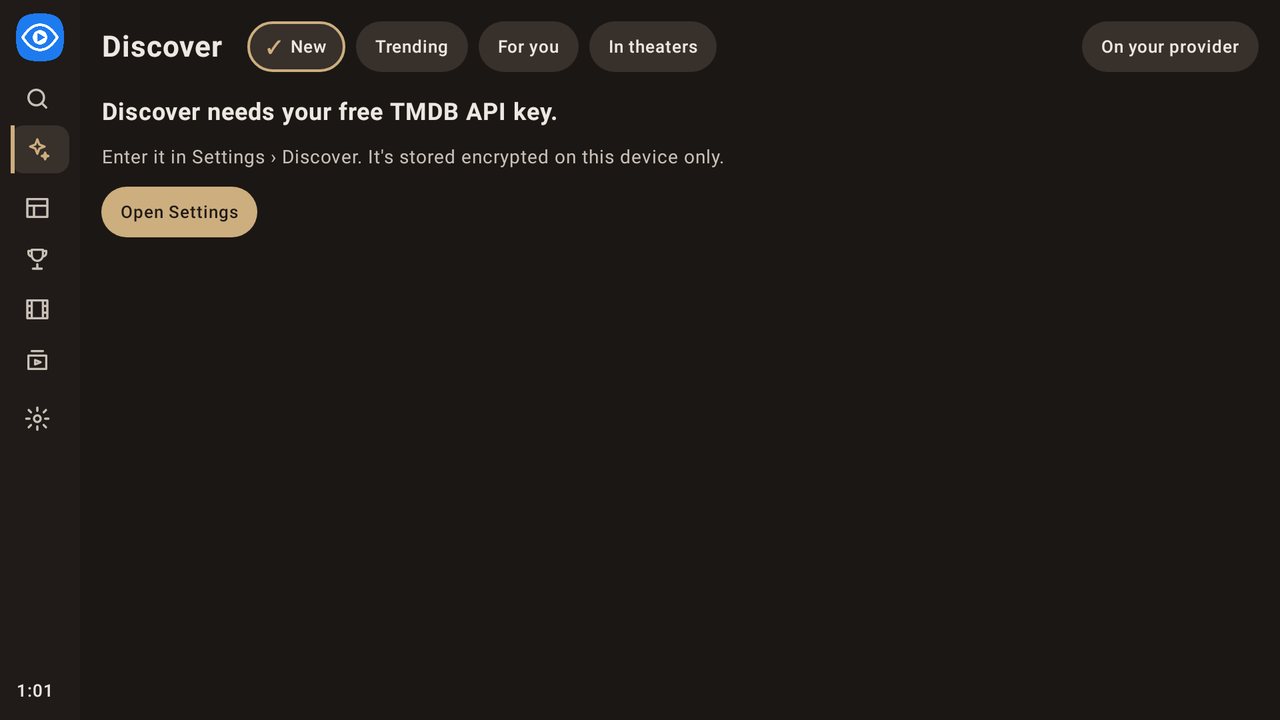
Discover shows what's new and popular, and where to watch it, using TMDB and JustWatch data.
- Tabs: New, Trending, For you, In theaters.
- On your provider: only show titles your own playlists have (the ones tagged ▶ ON YOUR PROVIDER).
- My services: only show titles on the streaming services you've picked.
- Menu on a title: add it to My List, or press again to take it off. A ✓ on the poster shows it's in My List. Only titles on your provider can go in My List.
- Titles your provider carries are tagged ▶ ON YOUR PROVIDER (with a large catalog, the tag may appear a moment after the posters). Open one to play it (▶ Play, or ▶ Episodes for a series), add it to My List, or Search my playlists.
- Every version on your provider: when your playlists have the title more than once (other languages, qualities or playlists), its page lists N versions on your provider, English first, each with its language, category and playlist. The page scrolls as one: Down from the buttons moves through the versions and then Where to watch. OK on a version plays that movie or opens that series. The main button plays the first and says which ("Plays: English · EN | Drama · My provider").
- Where to watch lists Stream, Free, Rent and Buy options for your region.
Discover needs a free TMDB API key. Enter it in Settings › Discover; it's stored encrypted on the device. How to get one: TMDB in Supplemental services.
7. Sports
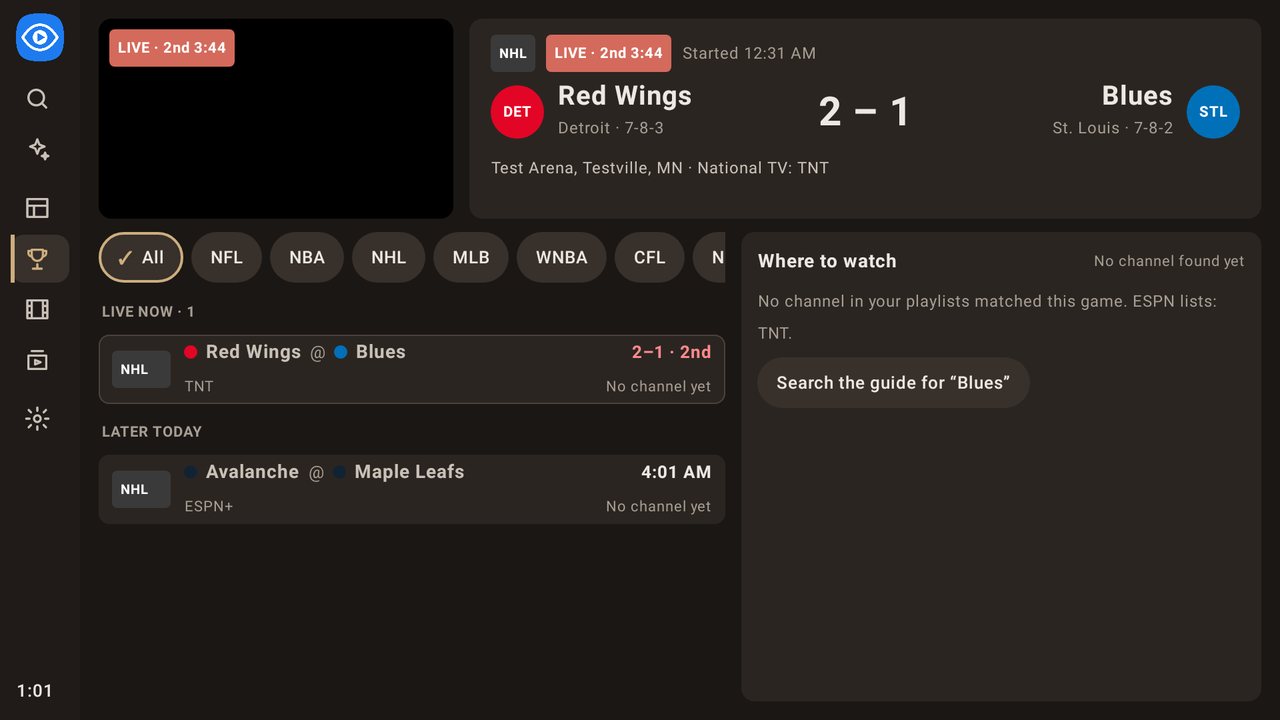
Sports lists real games from ESPN's schedules for today and the next 2 days, plus recent finals, then finds the channels in your playlists that carry them. Leagues: NFL, NBA, NHL, MLB, WNBA, CFL, college football (FBS) and men's college basketball (Division I).
- Top: the preview window and the highlighted game. It shows the league, the status (LIVE with the period and clock, FINAL, or the start time), both teams with logos, records and the score, the venue, and the national TV or streaming service.
- Left:
- League filters: All, then each league you've switched on.
- Games: grouped as Live now, Later today, the next days and Final. Each card shows the matchup, its networks, its time or score, and how many channels were found. Games with no channel found are greyed out.
- Right: Where to watch. The game's channels, best first, each with why it matched:
- National TV / Streaming: a channel named for the network ESPN lists (TNT, ESPN2, Fox, Prime Video…).
- In the guide: a listing during the game that names both teams.
- Event channel: the channel's name has both teams, for example "NHL 03: Red Wings @ Blues".
- Local TV: a team's regional network (FanDuel Sports Network, MSG, Altitude…).
- OK on a game moves to its channels. OK on a channel plays it in the preview; OK again opens full screen. In full screen, Channel Up/Down goes through that game's channels, best first, wrapping around at the end; the info bar shows the game and "channel 2 of 3". Back returns to Sports with the channel you were watching (or the game) highlighted.
- Every playlist: Sports searches every switched-on playlist with live TV. Hidden channels and categories are skipped.
- North America only:
- US channels come first; Canadian channels are the backup.
- Channels marked for other countries are left out, for example "UK |" in the name, or a category for another country.
- Finding channels…: the games appear as soon as ESPN answers. Until a game's channels have been looked for, its card says Finding channels… (usually a few seconds); games are listed meanwhile even if Games with no channel found is set to Hide.
- Games further ahead: guide listings and event channels for later games depend on how far ahead your guide goes (up to 7 days), so some appear closer to the start. Search the guide for "[team]" jumps to the TV Guide's search.
- Updates: each day is asked for separately. Today and yesterday are refreshed about every minute while Sports is open (scores while games are live), the next 2 days every 30 minutes. In the background Sports refreshes every 30 minutes. If ESPN can't be reached, Sports says so and shows the last list saved on the TV.
8. Movies and Series
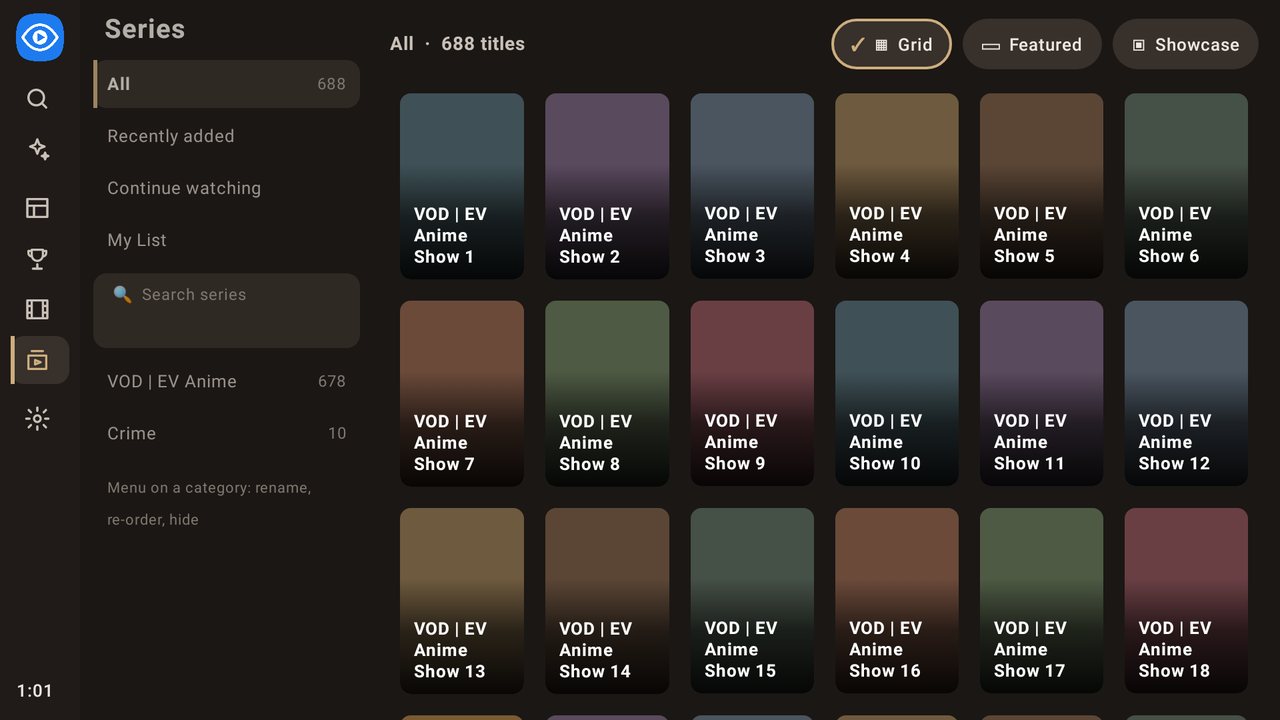
Left side: Playlists, then categories: All, Recently added, Continue watching, My List, and your provider's categories.
Right side: posters for the chosen category. A category you pause on is read ahead, so OK shows it at once.
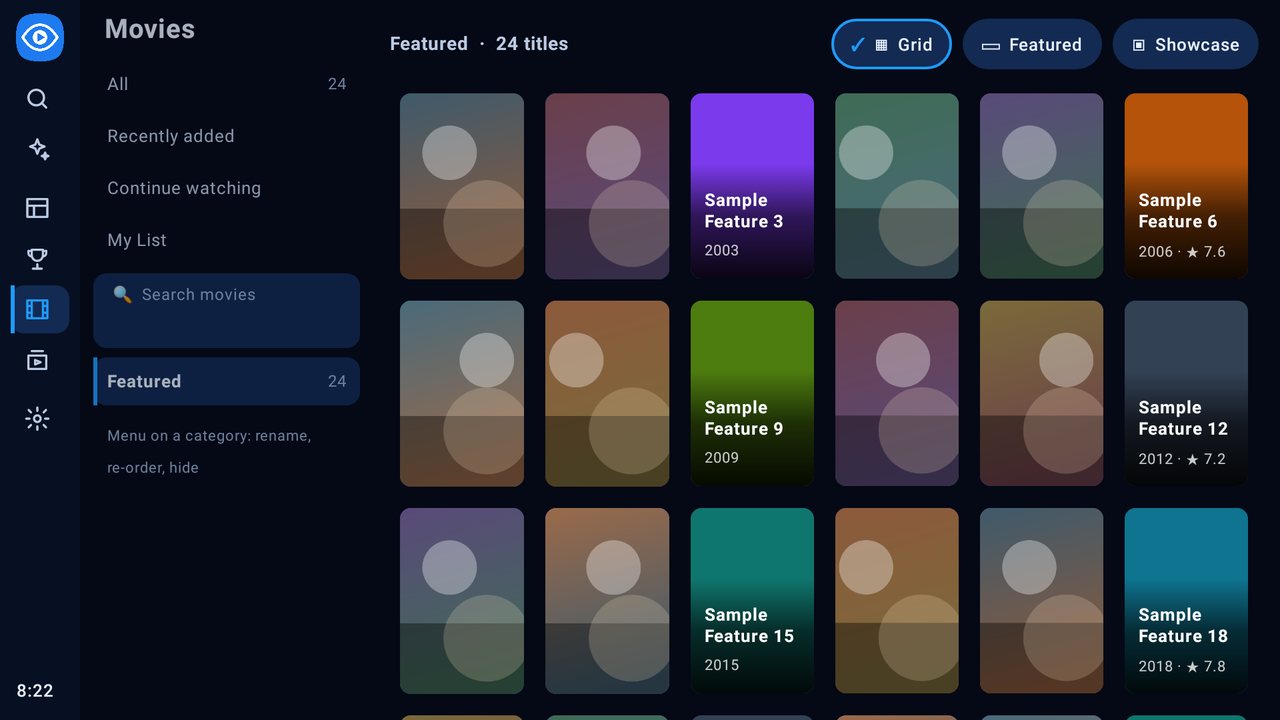
Posters fill their tiles. The title and year appear on a dark fade only on the highlighted poster, and on titles that have no artwork (most posters already show their title). The highlighted poster grows a little and gets a ring. ✓ in a corner means the title is in My List.
Layouts: the buttons above the posters switch between three ways of browsing. Each profile remembers its choice; Up from the top row of posters reaches them.
▦ Grid: rows of posters.
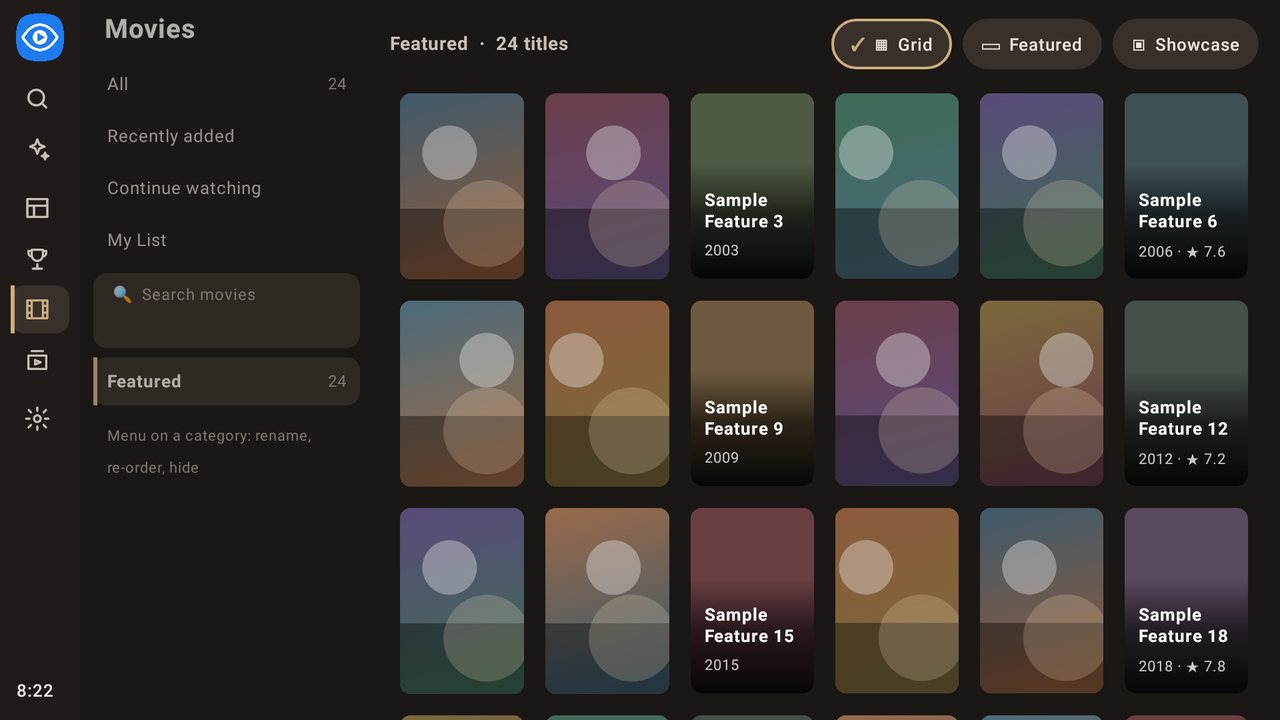
▭ Featured: the highlighted title's artwork, name, year and rating above the posters.
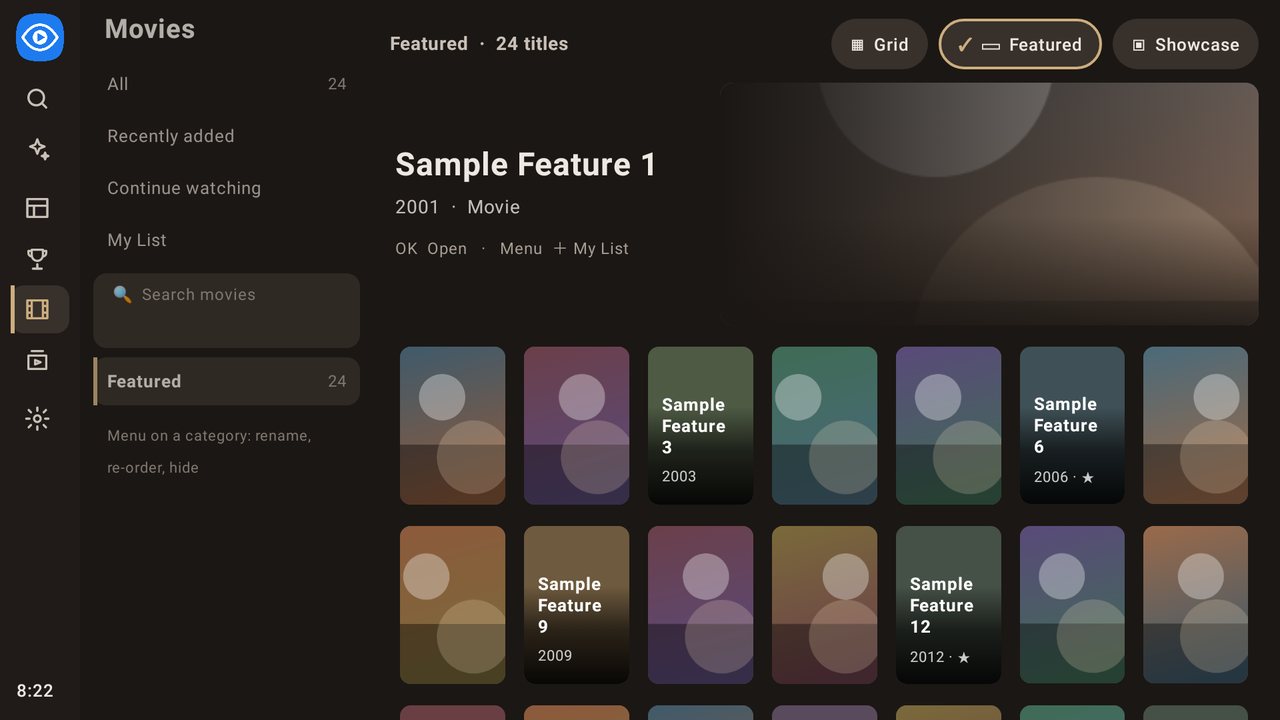
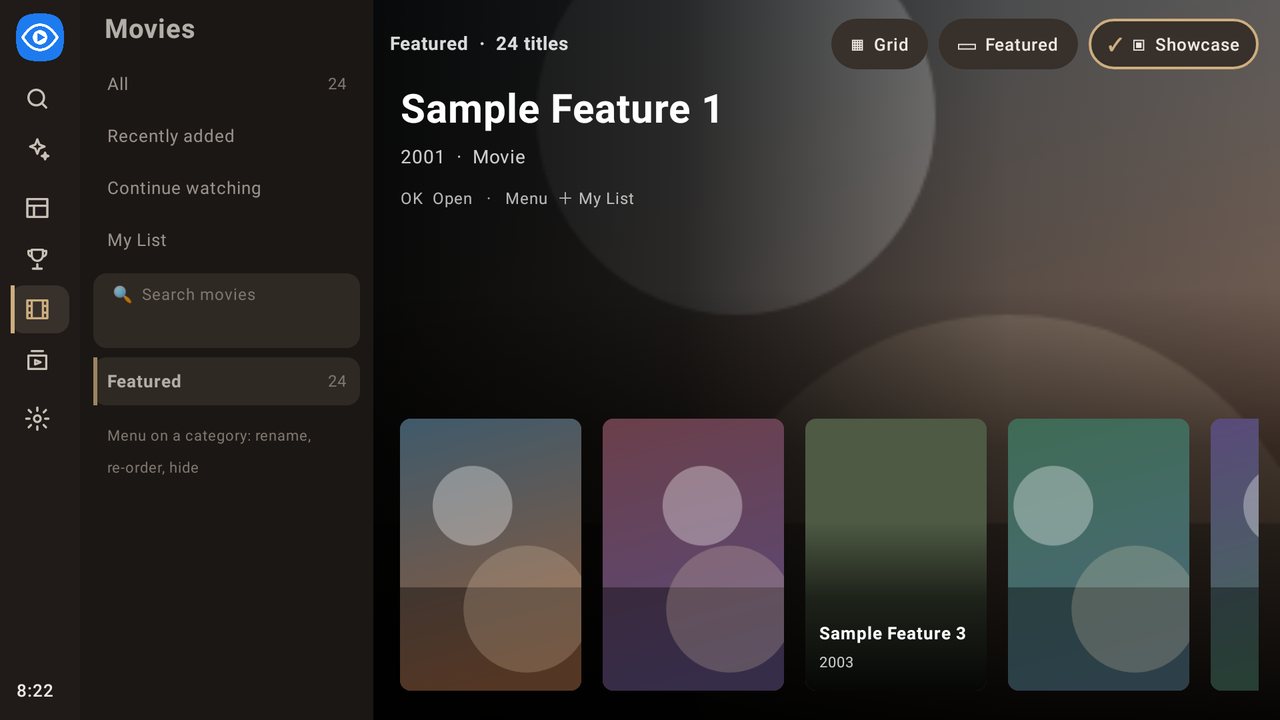
▣ Showcase: the highlighted title's artwork fills the screen, with one row of posters along the bottom (Left/Right to move along it).
Each title is listed once. When your playlists have the same title several times (other languages, qualities such as 4K or HD, provider tags such as "NF -" in front of the name, or other playlists), it appears once, shown by its English copy (else one with no language marked). This applies to All, Recently added, every category and the search.
🔍 Search movies / 🔍 Search series is in the category list, below My List. Results replace the poster grid; ✕ Clear search ends the search. When fewer than 30 titles hold every word you typed, near matches (a small typo, or a word left out) are added after them.
OK on a poster opens its page: plot, cast, director, ▶ Play, or ▶ Resume from [time] and Start over, plus + My List.
⇄ N versions (on a title with several copies) lists each copy with its language, name, category and playlist; ✓ marks the one shown, and the line This version: … under the buttons says which one you're on. OK on another copy shows that one, with its own episodes, resume point and My List button. The language comes from codes on the name or category ("EN |", "FR -", "VF", "MULTI"…); copies without one show "Language not marked". Series pages list episodes by Season, with resume points; episodes you've played to the end say ✓ Watched. A series page opens on the next episode to watch, with its season chosen: Season 1, Episode 1 for a series you haven't started, otherwise the episode after the last one you finished (or the one you stopped part-way through). The page scrolls as one: Up from the episode goes to the season buttons, then the title's buttons; from the buttons, Down goes to the season buttons, then through every episode, however long the description. After you watch an episode and press Back, that episode is highlighted.
Each category (and each search) keeps its own place.
Back goes one step at a time: from a title's page to its poster, from a poster to the category you're in (highlighted), then to the main menu, on Movies or Series.
Left from the first column of posters (in Showcase, from the first poster) goes to the category you're browsing.
Category list wraps around: Up on All jumps to the last category, and Down on the last returns to All. The poster grid stops at the end.
Menu on a category: Rename, Re-order or Hide it. Hidden categories come back in Settings › List Editor.
If you have more than one playlist, movies and series from all of them are merged.
9. Settings
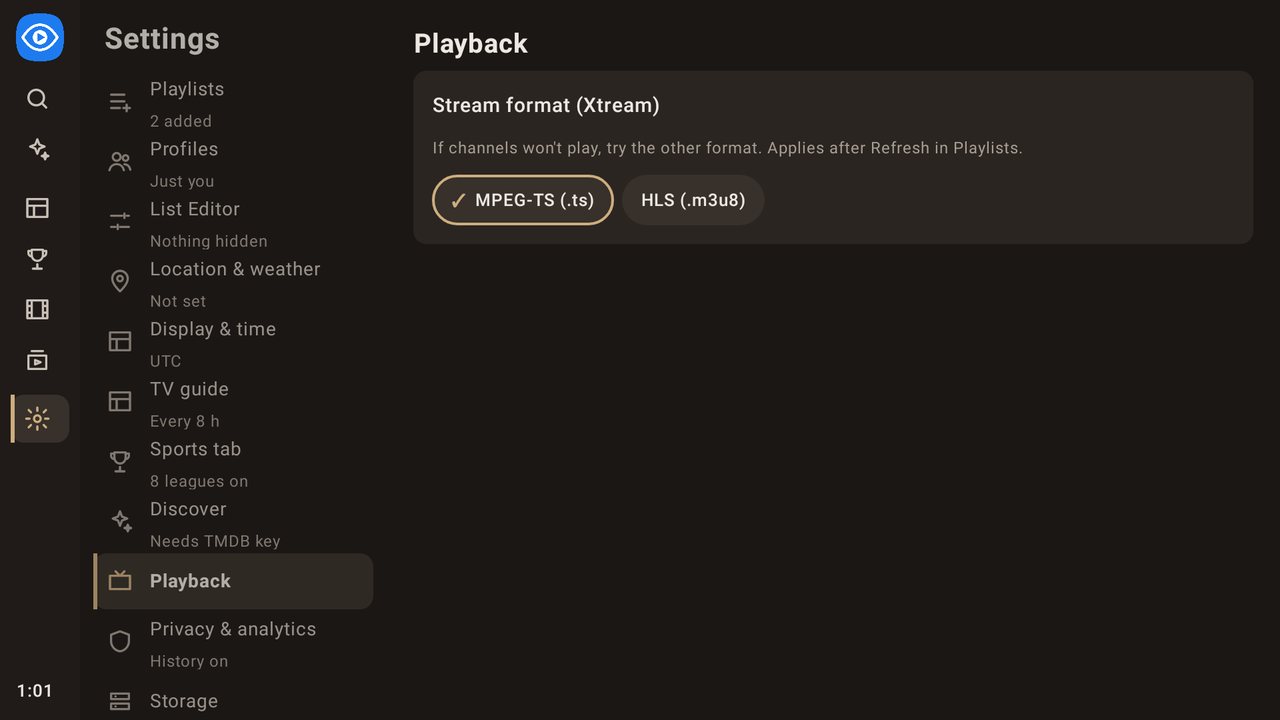
Settings has sections on the left and the open section's options on the right. Up/Down move through the sections; the section list scrolls to keep the highlighted one in view. OK opens the highlighted section and moves into it, on its first option (Right also moves into the open section). Inside a section, Up and Down stop at the first and last option. Left at the left edge of a section, or Back, returns to that section in the list; Back again opens the main menu.
Playlists
- The list of your playlists (Up/Down to choose, Right for options) and Add playlist. While you're in the form on the right, the list narrows, so the page never has more than three full columns.
- Back in the add or edit form with changes that aren't saved asks Discard changes?. Keep editing has the highlight; Discard drops the changes. The guide source form, postal code and TMDB key ask the same way.
- For each playlist:
- ✎ Edit: change its details. If you change the server, login or links, its channels and guide are downloaded again, and you're asked to confirm first.
- ↻ Refresh: replace the saved channels, guide, movies and series with what your provider has now.
- ✕ Remove: delete the playlist and its login from the device. To keep it for later, turn it off instead.
- ▤ Guide sources: where this playlist's TV guide comes from (see below).
- Switches: Playlist on (off hides it everywhere without deleting anything), Live TV & guide, and Movies & series.
- Details shows the type, server, username, playlist link, TV guide source and status.
Guide sources (Settings › Playlists › choose a playlist › ▤ Guide sources)
- Download from these sources every 4 / 8 / 12 / 24 h: the same setting as in Settings › TV guide; it applies to every playlist.
- Provider's guide (on/off): the guide that comes with an Xtream login, or the M3U file's own guide link.
- + Add guide source: a name, an XMLTV address (
.xmlor.xml.gz) and a time offset (−12 to +12 hours) for a guide that's consistently early or late. The keyboard opens on Name; Next on the keyboard moves to the address, and Done there saves. The highlight goes back to the button after Save or Cancel. ▲ / ▼ move a source and keep the highlight on it. While you're in Guide sources, the playlist list steps aside; Left brings it back. - Each source has Turn off / Turn on, ✎ Edit, ▲ ▼ to change the order, and ✕ Delete (asks first). Each one shows when it last downloaded and how many channels it covered, or why it failed.
- Order matters: sources are read top to bottom, and for each channel the first source with listings is used.
- Download now gets this playlist's guide again.
Downloads that stall give up after 45 seconds. A download that fails before it starts (no connection, a busy server) is tried again twice, after 1 and 3 seconds. Loading, empty and error messages look the same on every screen, and errors have Try again.
Background downloads. About 10 seconds after the app opens, it updates each switched-on playlist in turn, fetching only what's out of date: channels older than a day, the guide when it's older than your guide setting (8 hours by default), and movies & series older than a day. Content that's switched off is never loaded. The first download of a large movie catalog can make a Fire TV Stick feel slower for a minute or two.
Profiles
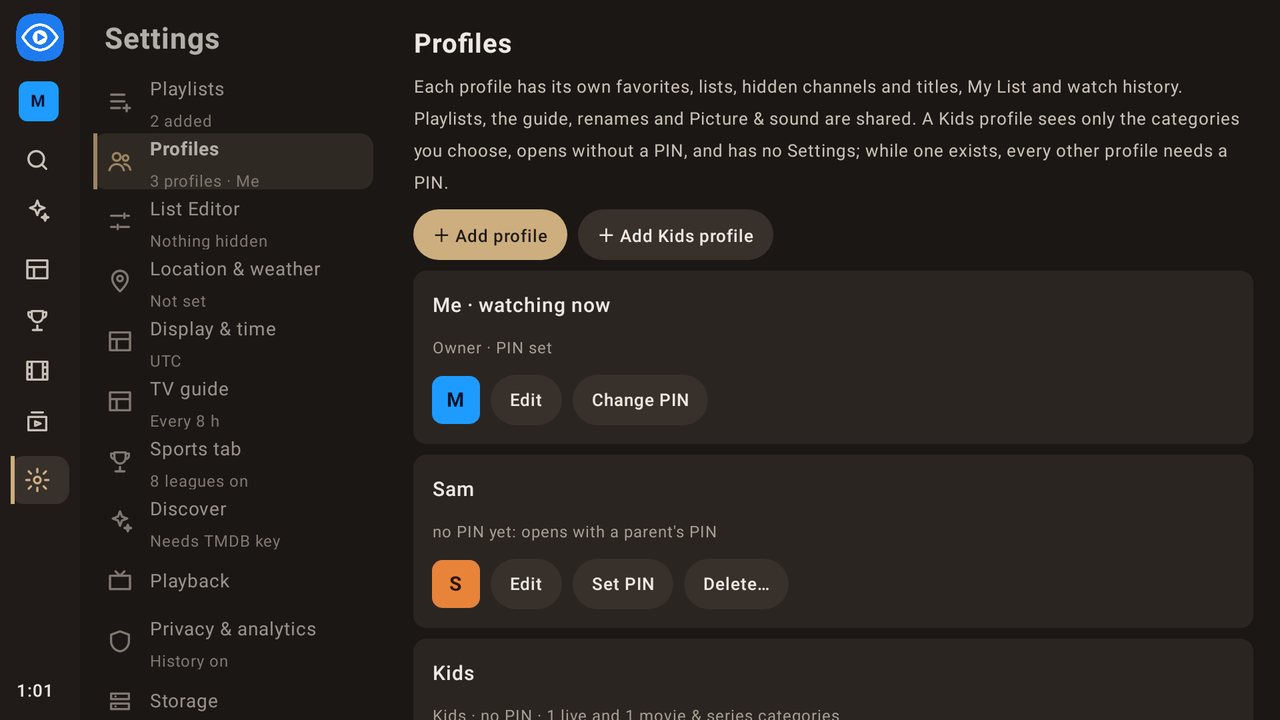
Each person in the household can have their own profile. A profile has its own ★ Favorites and lists, hidden channels and categories, hidden movie and series categories and titles, My List, last channel, dismissed local suggestions, watch history (and whether it's paused), resume points and watched episodes. Playlists and logins, guide sources and matches, renamed and re-ordered items, Picture & sound and every other setting are shared.
When you update from an earlier version, everything you had becomes the owner's profile, Me. Nothing changes until you add a second profile.
Each profile also has its own theme (colours) and its own Movies and Series layout. See Display & time.
Settings › Profiles (second in the list of sections)
- + Add profile: a name and a colour.
- + Add Kids profile: the same, for a child. If no grown-up has a PIN yet, the app asks you to set the owner's PIN first.
- For each profile:
- Edit: name, colour and Theme; for a Kids profile, also the categories it can watch.
- Set PIN / Change PIN: a 4-digit PIN, entered twice. Remove PIN appears only while there's no Kids profile.
- Parent (grown-up profiles other than the owner): a parent can manage profiles, and their PIN opens any profile. The owner is always a parent.
- Delete…: asks first, then deletes that profile's favorites, lists, hidden items and history. It can't be undone. The owner's profile and the profile in use can't be deleted.
- When the app starts: Ask who's watching (the default) or Last profile used. With Last profile used, if that profile needs a PIN the app opens on the Kids profile instead.
- In a profile that isn't a parent, changing profiles asks for a parent's PIN.
Kids profile
- Categories: a switch for each live TV category and each movie and series category. A new Kids profile starts with the categories whose names look made for children. Adult categories are greyed out and are never shown.
- The TV Guide, Movies, Series and Search show only those categories. Channels outside them can't be opened from favorites, lists, search or the last channel.
- Discover, Sports and Settings aren't in a Kids profile's menu.
- A Kids profile never needs a PIN. While a Kids profile exists, every other profile needs one, so a child can't switch out.
Who's watching? and switching
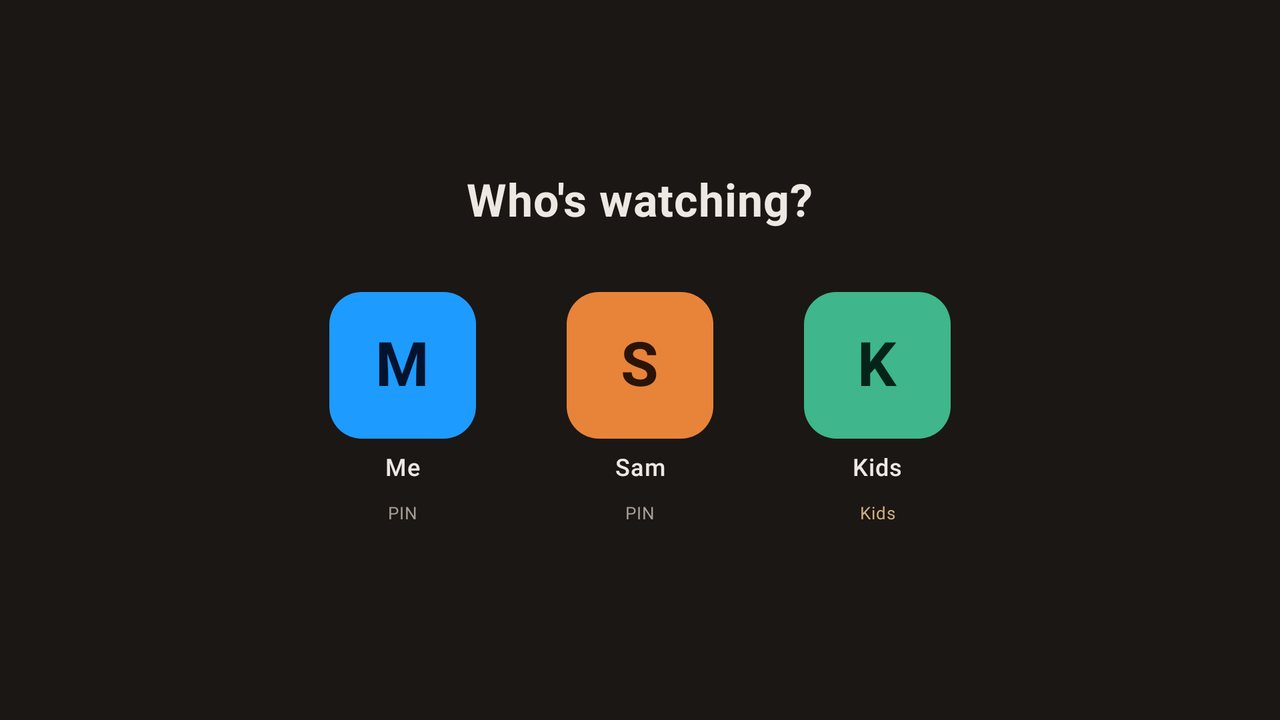
- Who's watching?: Left/Right pick a profile, OK opens it. Profiles that need a PIN show "PIN"; Kids profiles show "Kids". Nothing plays until a profile is chosen.
- Switch profile: OK on the profile at the top of the main menu. Choose another profile, or Manage profiles… to open Settings › Profiles.
- PIN: type the 4 digits with the remote's number keys or the on-screen pad (Delete removes the last digit, Cancel goes back). A profile's own PIN or any parent's PIN opens it. After 5 wrong PINs in a row the app says "Too many tries. Wait a minute."
- Forgot a PIN? Open a parent's profile and use Change PIN on that profile; the old PIN isn't needed.
Profiles are included in backups (see Backup & restore).
TV guide
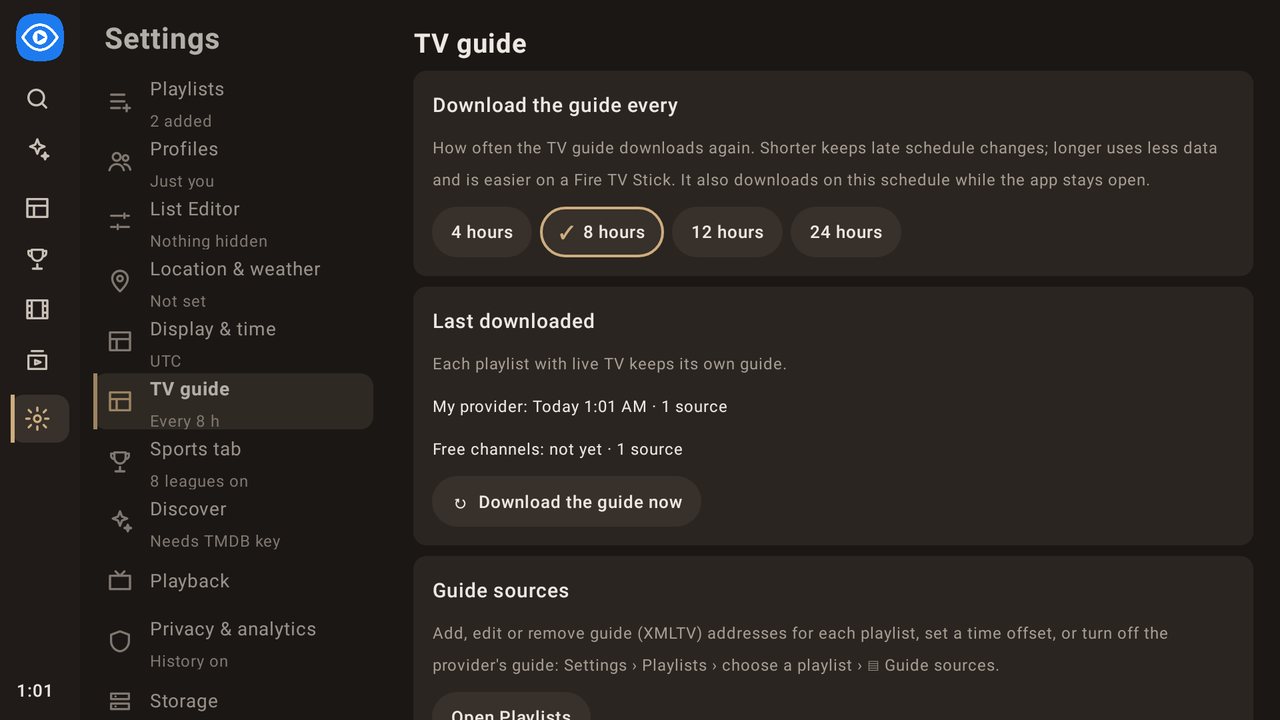
- Download the guide every: 4, 8, 12 or 24 hours (8 is the default). The app also follows this while it stays open. Each download keeps up to 7 days of listings. A guide source that hasn't changed since the last download isn't downloaded again.
- Last downloaded: when each playlist's guide last downloaded and how many sources it has. Download the guide now gets every guide again.
- Channels matched by hand: how many there are, with Clear all matches (asks first).
List Editor
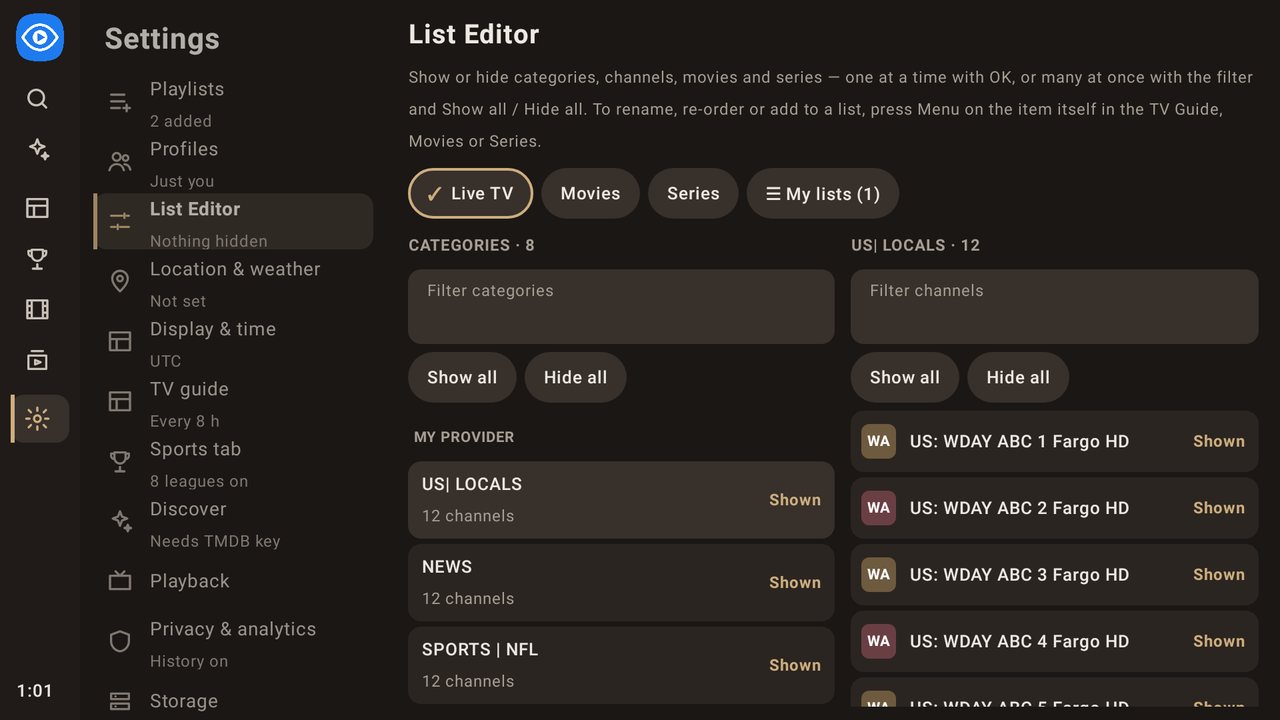
Show or hide items one at a time with OK, or many at once with the filter and Show all / Hide all. It has four tabs:
- Live TV: categories by playlist, then the channels in each category.
- Movies and Series: categories and titles.
- ☰ My lists: show or hide your lists in the TV Guide. ★ Favorites is always shown.
Rename, re-order and Add to List are done with Menu on the item itself in the TV Guide, Movies or Series.
- Headers show counts, for example "EN - MOVIES 4K · 1105 · 222 hidden". With a filter typed, Show all / Hide all act only on the matches (for example "Hide 222").
- Hidden movies, series and categories also disappear from search.
- A hidden list keeps its channels. Add to List marks it "(hidden)".
Location & weather
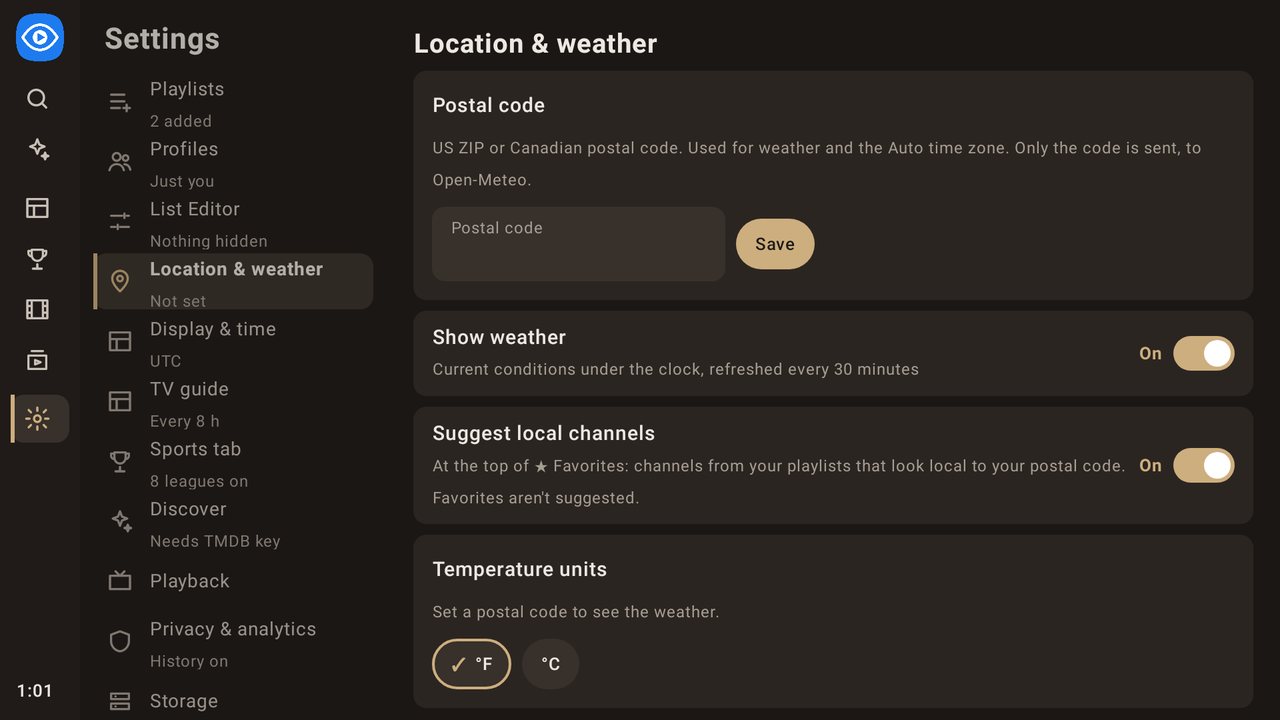
- Postal code: a US ZIP or Canadian postal code (Done on the keyboard saves it). It's used for weather, local channel suggestions and the Auto time zone. Only the code is sent, to Open-Meteo.
- Show weather: current conditions under the clock, refreshed every 30 minutes.
- Suggest local channels: on or off. Show them again restores suggestions you dismissed.
- Temperature units.
Display & time
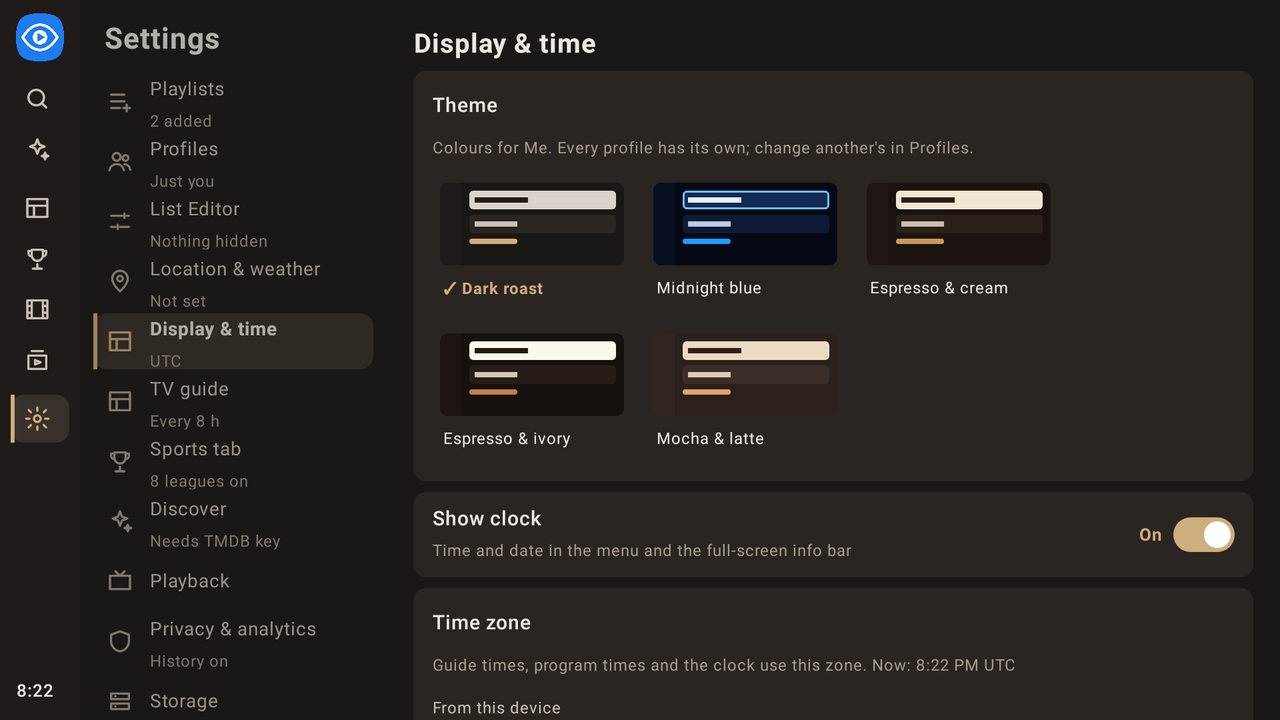
Theme: the colours of the profile you're using. Each profile has its own; change another profile's in Settings › Profiles › Edit. OK on a preview picks it, and ✓ marks the one in use.
- Dark roast: dark brown, a soft warm-grey highlight with dark text, muted gold. New installs and new profiles start on it.
- Midnight blue: navy with a bright blue ring, the look up to 1.3.0. Profiles that existed before 1.4.0 keep it until you change it.
- Espresso & cream, Espresso & ivory and Mocha & latte: other warm themes, from darkest to lightest base.
Show clock: time and date in the menu and in the full-screen info bar.
Time zone: Auto (from your postal code), Device, Eastern, Central, Mountain, Arizona, Pacific, Alaska, Hawaii or Atlantic. Guide and program times use this zone.
Sports tab
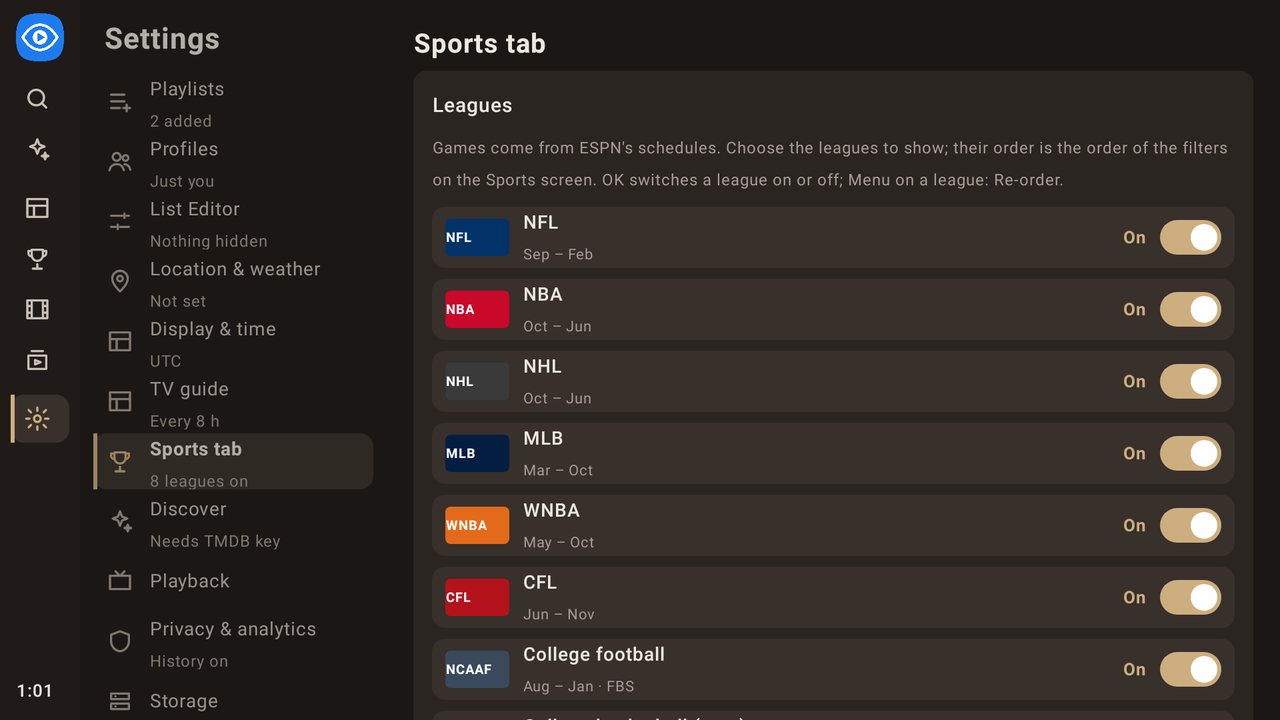
- Leagues: OK switches a league on or off.
- Menu on a league re-orders it: ▲▼ move, ◀ top, ▶ bottom, OK done. The order is the order of the filters on the Sports screen.
- Games with no channel found: Show (greyed out, with ESPN's networks) or Hide.
- Finished games stay for: 6, 12 or 24 hours.
- Scores: Show or Hide. Hiding them avoids spoilers: live games show only the period.
- Soccer, rugby, cricket, golf, motor racing and combat sports aren't included yet.
Discover
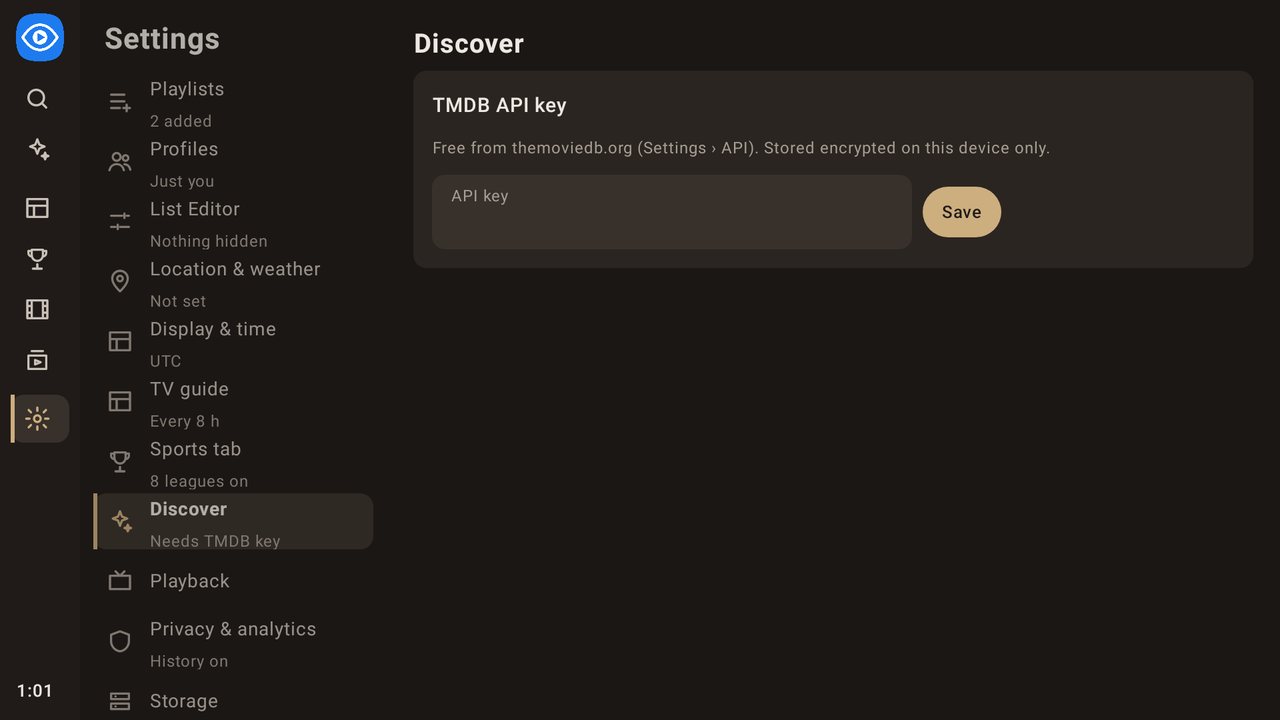
- TMDB API key: Save it (or press Done on the keyboard), or Remove it (asks first).
- My streaming services: pick the services you subscribe to.
Playback
- Stream format (Xtream): MPEG-TS (.ts) or HLS (.m3u8). If channels won't play, try the other format. The change applies after a Refresh in Playlists.
Privacy & analytics
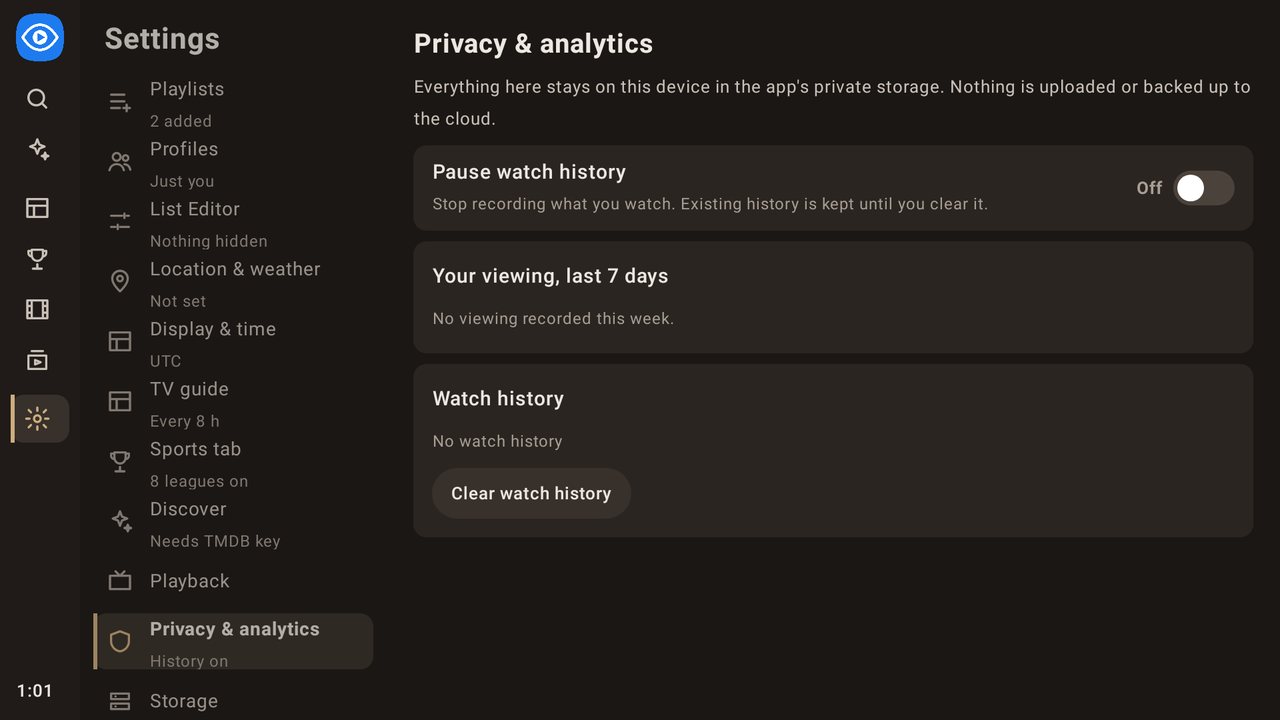
Everything here stays on the device; nothing is uploaded or backed up to the cloud. Watch history, the pause switch and the 7-day summary belong to the profile in use.
- Pause watch history: stop recording what you watch.
- Your viewing, last 7 days: hours watched and your top channels.
- Clear watch history (the app keeps up to 90 days). It asks first.
Storage
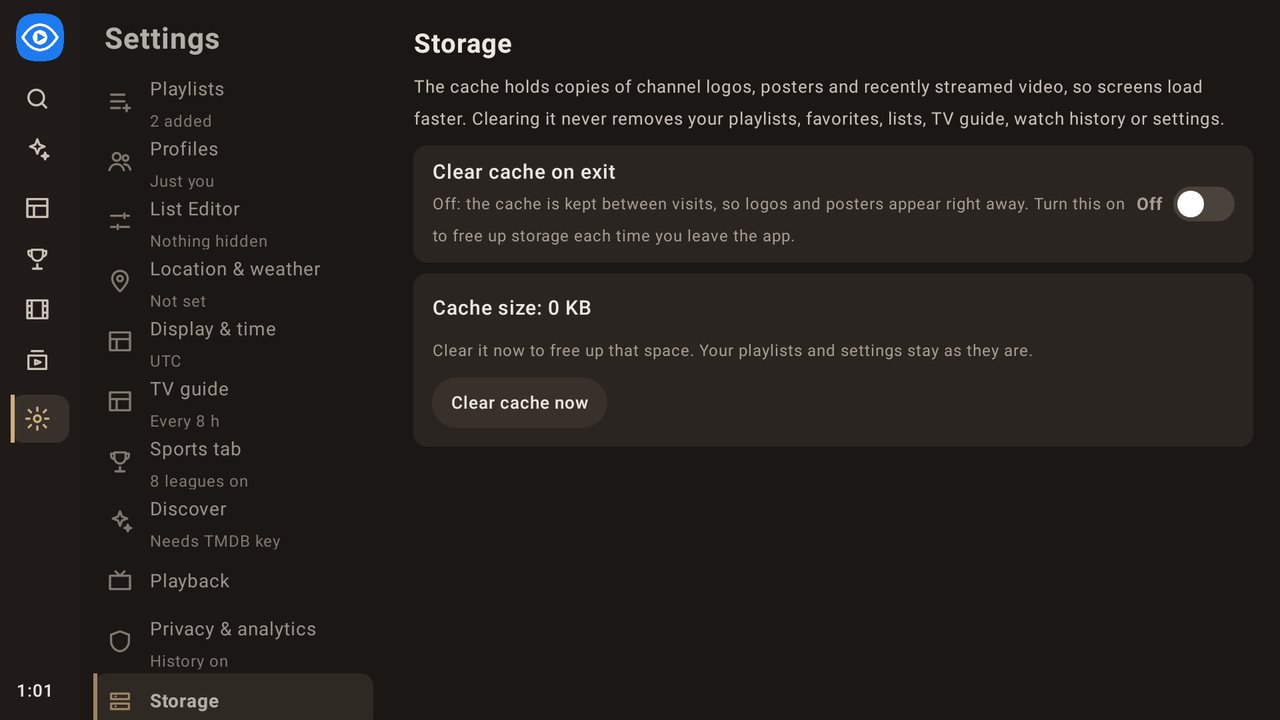
- Clear cache on exit: empty the cache (logos, posters, recently streamed video) every time you leave the app.
- Cache size and Clear cache now (asks first). Clearing never removes your playlists, favorites, lists, guide, history or settings.
Updates & about
- App updates: the installed version, Check now, Download and install, and the Check for updates automatically switch.
- The main menu shows Update x.y.z as soon as a new version is found, and Download and install is here.
- The Update available dialog (Update now / Later) opens by itself only once the newest version has been out for 24 hours and isn't installed yet. If an even newer version comes out in the meantime, the 24 hours start again. Later waits another 24 hours. It never opens over full-screen video. A TV left running checks for new versions every 6 hours (when Check for updates automatically is on).
- The download shows its progress. If the connection stalls, the app waits 15 seconds and continues from where it stopped (up to 8 tries). The finished file is checked before installing, and a damaged download is refused.
- If Android's installer doesn't appear within about 25 seconds, an Open installer button opens Android's own install screen for the same file.
- Last crash: if the app closed unexpectedly, the details are kept here on the device, with Report issue and Clear crash report (asks first). Report issue sends them to bugs@avidviewer.app and then clears them (see If the app closes unexpectedly below).
- Playback log: a summary ("Playback log: 3 freezes (longest 12 s), 1 error today") and the latest problems, each with its likely cause. Channels and titles appear as short codes ("Live channel 4F2A", "Title 9C01"), never by name. Send playback log sends it to bugs@avidviewer.app; Clear log asks first. Send it automatically (on by default) sends it at most once a day, and only when there were freezes or errors since the last send.
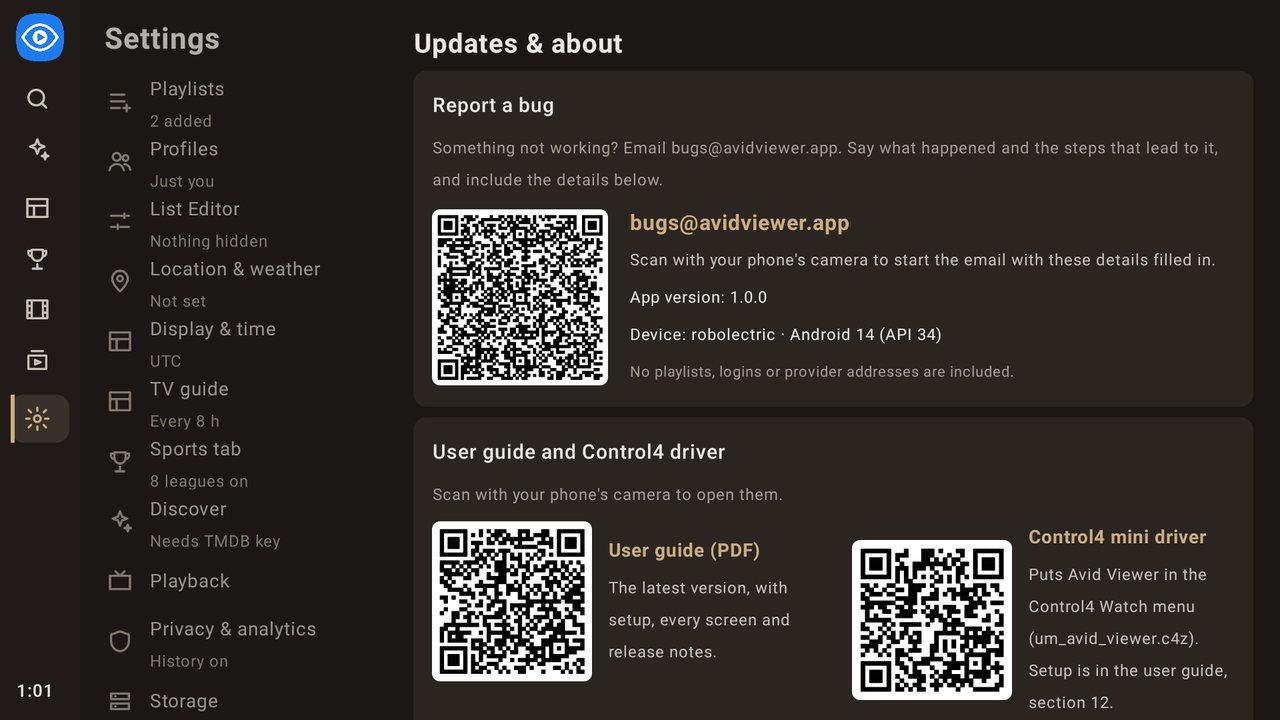
- Report a bug: email bugs@avidviewer.app with what happened and the steps that lead to it. The section lists the details to include, read from the TV (app version, device model, Android and Fire OS versions, and the last crash's error). Scan the QR code with a phone camera to start that email with the details filled in; Open email app appears only on TVs that have one. No playlists, logins or provider addresses are included.
- User guide and Control4 driver: two QR codes to scan with a phone. User guide (PDF) opens the latest version of this guide; Control4 mini driver downloads
um_avid_viewer.c4z(see Control4). - Moving through this section: opening it (OK on Updates & about) highlights Report a bug first; Down moves to the QR codes, then to Backup & restore and App updates. Blocks without buttons (Report a bug on TVs without an email app, and the QR codes) take the highlight themselves, with a ring around the whole block, so the page scrolls each one fully into view.
- Credits: TMDB, JustWatch, Open-Meteo and ESPN.
Backup & restore
A backup saves your playlists (with their logins), ★ Favorites and your lists, renamed and re-ordered channels and categories, hidden items, Sports leagues and options, location, the TMDB key, network-share settings, all other settings, watch history and resume points, and every profile with its own favorites, lists, hidden items and history (PINs are stored only as one-way hashes). After a restore the app opens on the owner's profile. Channels, guides and movie catalogs aren't included; they download again after a restore.
Because it holds your provider logins, every backup is locked with a PIN you choose (4 or more digits). The PIN can't be recovered if you forget it.
Back up to this device
- Choose Back up now, enter a PIN twice, then Save backup.
- The file is saved to Download › AvidViewer, with a name like
AvidViewer-backup-2026-11-09_2015.avbak. It stays there even if you delete the app. - On Android 9 and older, the app first asks for permission to save to the Download folder.
Restore
- Choose Restore from a backup. This opens the device's file picker, or a file manager app if one is installed. If neither exists, the app lists the backups it finds in the Download folder.
- Check the confirmation, which shows when the backup was made and which playlists it holds. Restoring replaces the playlists and settings on this device and can't be undone.
- Enter the backup's PIN. A wrong PIN is refused and nothing changes. After a restore, channels and guides start downloading again.
Network share (SAMBA)
Keep backups in a shared folder on a PC or NAS, so a reinstalled app or a new TV can restore without a file manager or USB drive.
- Enter the share address, for example
\\192.168.1.20\Backups\AvidViewer(\\NAS\Backupsandsmb://server/share/folderalso work). The folder is created if it's missing. - Enter a user name (
DOMAIN\userworks) and password. Leave both empty for a guest share. - Choose Save and test. The app connects and tells you how many backups are already there.
- Back up to the share asks for a PIN, then saves the file there.
- Restore from the share lists the backups, newest first. Pick one, enter its PIN and confirm.
The share password is stored encrypted on the TV and is included in your PIN-locked backups.
Moving to another TV: copy the .avbak file across (network share, USB drive or file manager), then restore it on the new TV.
10. Privacy
- All your data stays on the device. Android cloud backup and device-to-device transfer are turned off.
- Provider passwords and the TMDB key are encrypted with the Android Keystore.
- Backup files are encrypted and locked with your PIN, because they contain provider logins.
- Profile PINs are stored only as salted one-way hashes, never as the digits.
- The playback log (freezes and errors) never records what you watch: each channel or title is a short code made from a random number kept on your TV, which can't be turned back into a name. It is sent to bugs@avidviewer.app at most once a day when there were problems, or when you choose Send playback log. Turn off Send it automatically in Settings › Updates & about to send it only by hand. Addresses, logins and IP addresses are removed first.
- Crash details leave the TV only when you choose Report issue. They go to bugs@avidviewer.app through a small mail relay, with web addresses, server and host names, IP addresses, user names, passwords and tokens removed first.
- Security checks (1.10.1) use freeRASP by Talsec. It checks the TV and the app for tampering (root, hooking tools, a modified copy, debuggers, emulators) and sends Talsec anonymous findings about the device and app for its security reports; nothing about what you watch, your playlists or logins. Alerts the app finds are also sent to bugs@avidviewer.app through the crash relay, each kind once and at most once a day.
- Outside services get only what they need: your postal code (Open-Meteo, for weather), title lookups (TMDB/JustWatch, if you add a key), scoreboards (ESPN), update checks (GitHub) and, when you choose Report issue, the crash report (the Avid Viewer crash relay, a Google Apps Script web app).
11. Troubleshooting
If video freezes
The app notes every freeze in the playback log, with its likely cause. Open Menu › Stream info while it happens, or Settings › Updates & about › Playback log afterwards:
- "the provider (HTTP 503…)": the provider's server refused or failed. Usually busy times or a problem on their side; try again later or contact the provider.
- "the network or the provider's server (connection timed out…)": the connection dropped. Check Wi-Fi (a wired connection or a closer router helps), or the provider may be overloaded.
- "too slow (getting 3.1 Mb/s, the stream needs 8 Mb/s)": the stream needs more than the TV is getting. Try an HD instead of a 4K channel, or improve the connection.
- "data stopped arriving… the provider's server paused the stream": no error, but nothing came. Usually the provider.
- "the TV's video decoder" (picture stopped while the sound went on, or many dropped frames): the TV struggled with the video, often 4K or HEVC on a Fire TV Stick. Try the HD version of the channel.
Automatic reconnect (1.10.0). When the picture stands still for 5 seconds while the sound plays, or no data has arrived for 4 seconds with less than 8 seconds left in the buffer, the app reopens the stream by itself and shows "Reconnecting…". Live channels come back at the live point, movies and episodes where they were. It doesn't reconnect in a channel's first 10 seconds, and stops after 3 reconnects in 3 minutes on one channel (a channel that keeps failing usually has a provider problem). Each reconnect is in the playback log, with whether the picture came back.
Sending the log (Send playback log) helps us find a pattern across days.
- Channels won't play: switch the Stream format in Settings › Playback, then Refresh the playlist.
- No channels or guide: check that the playlist, and its Live TV switch, are on in Settings › Playlists, then choose Refresh.
- No movies or series: turn on Movies & series for the playlist and Refresh.
- Discover is empty: add a TMDB API key in Settings › Discover, or turn off "My services".
- Sports showed no games for a long time after updating to 1.2.0 (with a big TV guide and several playlists): update to 1.3.0 or later; games now appear at once.
- Sports is empty: check the leagues in Settings › Sports tab; off-season leagues have no games. "Couldn't reach ESPN" means the schedules couldn't be downloaded, so the last list is shown. On 1.0.141 this appeared for every league; update to 1.0.147 or later.
- A game shows "No channel yet": your playlists have no channel named for its network, and no guide listing or event channel for it yet. Those often appear closer to the start. You can also use Search the guide on the game.
- Discover froze or the app closed after about 20 seconds (1.0.137 and earlier, with large movie catalogs): update the app.
- Channels and the guide took minutes to appear after updating to 1.0.160 (with a big movie and series catalog): update to 1.0.162 or later. If you're still on 1.0.160, leave the app open until they appear; it only happens once.
- The app froze or closed while pressing Up/Down quickly in the TV Guide (1.0.147 and earlier, mostly in big categories after wrapping from the top to the bottom): update to 1.0.160 or later.
- No audio tracks or captions to choose in Picture & sound: the stream doesn't carry them. Many live channels have one audio track and no captions; try another channel, or set captions to On (when available) so they show when a program has them.
- Movies or Series were slow, or the app stopped responding on Series (1.0.160 to 1.0.162, with a big catalog): update to 1.0.165 or later.
- A title is missing from Movies or Series: it may be listed once under another copy. Open it and use ⇄ N versions.
- A channel or category disappeared: it may be hidden. Check Settings › List Editor.
- A guide row ends early and Right won't go further: fixed in 1.0.133 for guides that list overlapping programmes; update the app.
- A channel shows the wrong listings, or none: press Menu on it and choose Match guide…. If a whole guide is consistently early or late, set a time offset on its source in Settings › Playlists › ▤ Guide sources.
- Favorites landed one channel off after a restore (on a version before 1.0.94): that backup can't fix them automatically. Set them once, then make a new backup; newer backups record which channel each favorite points to.
- An update hangs at about 95% (updating from 1.0.82 or earlier, which have the old updater): try again. If it still hangs, install the new version once by hand with the Downloader app; later updates resume stalled downloads.
If the app closes unexpectedly
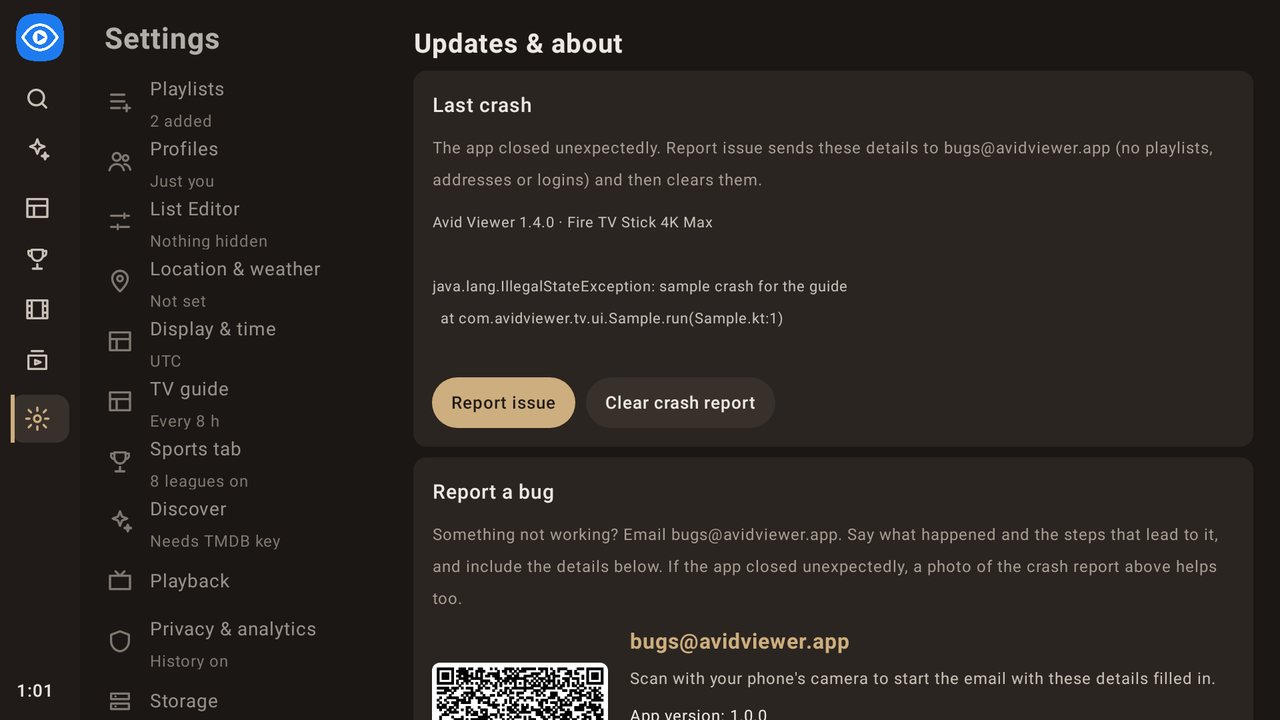
The next time it starts, the app says Avid Viewer closed unexpectedly:
- Report issue sends the details to bugs@avidviewer.app: the app version, the TV model and Android / Fire OS version, and the error. Web addresses, host names, IP addresses, user names, passwords and tokens are removed first; no playlists, logins or keys are sent. When it's sent, the message says thanks, closes after a few seconds, and the details are cleared.
- If it can't be sent (no connection, for example), the message says so and the details stay in Settings › Updates & about › Last crash, where Report issue can try again.
- Cancel closes the message. Nothing is sent, and the details stay in Last crash.
If the app vanished to the Fire TV home screen. Sometimes the TV closes the app itself, usually to free memory, and the app gets no chance to save anything. From 1.7.0 the app notices at its next start and shows the same message, so Report issue covers this too. The report says the app closed while in use, with the last few steps (screen names such as "Screen: search", or "Search: 2 words"; never what you searched or watched) and the memory in use. On Fire OS 8 and later it also includes the reason the TV gives (low memory, not responding, or a crash in the video code). Leaving the app with Home or Back is never reported, nor is force-stopping it in the TV's settings.
Backup questions
After reinstalling on a newer Fire TV, the app can't see my backup. On Fire OS 8 (Android 11), a reinstalled app may not be allowed to see a backup the old install saved, and some Fire TVs have no file picker. The app suggests installing a free file manager such as X-plore, which lets you pick the file. Backing up to a network share avoids the problem altogether.
The network share won't connect.
- Use the PC's or NAS's IP address if the TV can't find it by name. The app says "try the IP address" when this is the problem.
- Make sure the user has permission to change files in the shared folder, not just read them.
- Avid Viewer supports SMB 2 and 3 (Windows 10/11 and most NAS boxes). Devices that only offer SMB 1 won't connect.
- Other errors are explained in plain words: wrong password, no share by that name, no permission to write, or server not reachable.
I forgot my backup PIN. It can't be recovered. Make a new backup with a new PIN.
Reliability
Every build runs automated usability tests before it's released: the real app screens on a TV-sized screen, driven by simulated remote presses. They cover every screen and Settings section, re-ordering, List Editor bulk actions, search, hold-to-scroll, backups (including a real network share) and a 600-press random-key crash hunt. A failing test stops the release.
12. Control4
The Avid Viewer Control4 driver (um_avid_viewer.c4z) adds Avid Viewer to the Watch menu. Picking it switches the room to your Fire TV and opens Avid Viewer. Your Control4 installer adds it in Composer.
Download: Control4 drivers folder on Google Drive, or the driver file directly. Anyone with the link can download it. You can also scan the QR code in Settings › Updates & about with a phone.
What you need
- Avid Viewer installed on the Fire TV.
- A Fire TV driver in your Control4 system that works with Control4's universal app drivers. Its connections include an App Switcher with App or MiniApp inputs.
Setup in Composer
- Add the Avid Viewer driver to the room.
- Under Connections, connect the driver's Avid Viewer output to a free App / MiniApp input on the Fire TV driver's App Switcher.
- In System Design, select the room and check that it shows Audio Path = Yes for Avid Viewer.
- Refresh Navigators.
Using it
- Choose Avid Viewer under Watch on a Control4 remote, touchscreen or the app.
- Remote keys pass through to the Fire TV, so the D-pad, OK, Back and Menu work in Avid Viewer as usual.
- If the Fire TV driver's Passthrough Mode is Off, the Fire TV takes over as the selected device once Avid Viewer opens.
Control4 troubleshooting
- The remote stops working after choosing Avid Viewer: the room has no audio path for Avid Viewer. Fix the connections until System Design shows Audio Path = Yes.
- The Fire TV switches on but Avid Viewer doesn't open: check that the app is installed. Some third-party Fire TV drivers only launch apps from their own list and can't use this driver.
- To see what the driver sends: turn on its Debug Mode property. Its Fire TV Package property shows
com.avidviewer.tv.
13. Supplemental services
Optional services that work alongside Avid Viewer. None of them is required; each adds something the app can't do on its own.
EPGenius: curated playlists
EPGenius turns your provider's login into a cleaned-up playlist you add to Avid Viewer as an M3U link. Community members curate each list: they trim it to the useful channels, sort them into categories, add logos and fix the TV guide. EPGenius saves the playlist to your Google Drive and keeps it updated, so you set it up once.
What you need
- Your provider's login: an Xtream login (server, username, password) or an M3U link. EPGenius doesn't supply one.
- A Google account, where the playlist file is saved.
- A Discord account, used to register the playlist for automatic updates. A brand-new account has to wait about 24 hours (see below).
Create the playlist
- On a computer or phone, go to epgenius.org (not .com) and click I AGREE on the Terms & Disclaimer.
- Under Choose a Playlist, pick a list made for your provider, for example "jams | Strong 8k". Preview List + EPG shows the channels first.
- Choose Automatic, then enter your login. If you have both an Xtream login and an M3U link, use Xtream.
- Tick Upload to Google Drive, click Generate, then Upload to Google Drive, and sign in to Google. Allow pop-ups for epgenius.org, because Google sign-in opens in one.
- Copy the two links it shows: the Drive URL (the playlist) and the EPG URL (the guide).
Add it to Avid Viewer
- Open Settings › Playlists and choose Add playlist.
- Pick M3U link, not Xtream Codes, even if you gave EPGenius an Xtream login.
- Enter a name, paste the Drive URL as the M3U playlist link, and paste the EPG URL as the TV guide (XMLTV) link. The EPG link is a compressed
.xml.gzfile; Avid Viewer reads it directly. - Choose what to load and press Add playlist.
The Drive URL never changes, so Avid Viewer picks up updates on its normal refresh. You can rename the file in Google Drive without breaking the link.
Register for automatic updates (Discord)
- Create a Discord account at discord.com/register and verify your email.
- Join the EPGenius server: discord.gg/pZwcncweFc.
- New accounts are timed out for about 24 hours on joining and can't type during that time. When the timeout ends, rejoin with the same link if you were removed.
- In ✅〢verify, click Verify on the Wick bot's message and pass the image check. If the image doesn't appear, turn on User Settings → Chat → Embeds and link previews.
- In the help channel, run
/registerand paste your Drive URL. Run/infoany time to get your links back or to unregister a playlist.
Good to know
- Free lists update once a day by 04:00 UTC, and the guide refreshes every 4 hours. Supporters (after a donation of any amount) get updates instantly.
- You can register up to 5 playlists.
- Pick a list for the provider you actually have. Some sellers advertise one service but give you another.
TMDB: Discover
Discover uses a free key from TMDB (The Movie Database) to show what's new, trending and in theaters, and where to watch it. Without a key, Discover only shows how to add one.
Get a key (on a computer; TMDB's sign-up pages aren't made for phones)
- Create a free account at themoviedb.org and confirm your email.
- Open your account Settings › API (themoviedb.org/settings/api) and click Create (or Request an API key).
- For the type of use choose Personal (non-commercial), and accept the terms of use.
- Fill in the form. TMDB also asks for your name, email, phone and address; those are your own. For the application details you can use:
- Application name:
Avid Viewer - Application URL:
https://github.com/mavenmarty/avid-viewer - Application summary:
Avid Viewer is a free, non-commercial media player for Android TV and Fire TV that brings the live TV, movies and series from services I already subscribe to into one guide. It uses TMDB only to show titles, artwork, descriptions and where-to-watch information on its Discover screen, for my household. No TMDB data is resold or redistributed, and the app credits TMDB as its source.
- Application name:
- Submit. The API page then shows two values: the API Key (32 characters) and the API Read Access Token (a long one). Either works in Avid Viewer; the API Key is shorter to type.
Add it to Avid Viewer
- Open Settings › Discover, highlight TMDB API key and press OK.
- Type or paste the key and press Save (or Done on the keyboard). It's stored encrypted on the TV.
- Open Discover. If TMDB doesn't accept the key, Discover says so; check for a typo.
Good to know
- Several TVs: the same key works on all your TVs. Enter it on each one, or restore a backup, which includes it. Keep it to your household: it's linked to your TMDB account, and a misused key can be turned off, which stops Discover on every TV that uses it.
- How much it's used: Avid Viewer contacts TMDB only while Discover is open: roughly 100–150 requests when you go through all four tabs, and a tab refreshes after 6 hours. TMDB limits requests per home connection (about 50 a second), not per key, with no daily cap.
- My streaming services (Settings › Discover) tells Discover which services you subscribe to, so "New" and "where to watch" favour them.
Homestead: a cleaner Fire TV home screen
Homestead is a free, open-source replacement home screen for Fire TV, made by a separate project. It removes the ad rows and switches off Amazon's bloat and telemetry apps, all from the remote, with no computer needed. These steps are for version 2.2.0 (Nov 9, 2026).
Before you start
- The VPN prompt only covers the TV itself. Homestead routes just one private range (10.113.77.x) so it can talk to the TV's own debugging service. Your normal internet traffic isn't touched, and the tunnel turns off when setup ends.
- Nothing is deleted. Debloat switches packages off, and you can switch any of them back on from the same screen.
- Its only outside connection is GitHub. It checks GitHub once a day for updates and installs one only when you press Install.
- One permission is broad: reading the system log, which makes the Home button work reliably. You can take it away later (see below).
Set it up (about 10 minutes, remote only)
- Developer options and Downloader: if you installed Avid Viewer with Downloader, these are already done. Otherwise follow Installing the Downloader app: Developer options on, ADB debugging on, Downloader installed and allowed to install apps.
- Download Homestead. In Downloader, enter
github.com/Sarg338/Homestead/releases/latest/download/homestead.apkand install the app. - Start setup. Open Homestead and choose Set it up. Accept Android's VPN prompt: press Down to reach OK.
- Approve the ADB key. When the TV asks, check that the fingerprint matches the one Homestead shows. Tick Always allow from this computer, then select OK.
- Let setup finish. Homestead turns on its Home button by itself. If not, go to its Settings › Setup › Finish setup automatically.
- Debloat. Open Homestead's Settings › Debloat and use the one-press option. Skip the option marked risky, which switches off Amazon's launcher.
- Test it. Press Home. Homestead should open instead of Amazon's home screen. Avid Viewer is in its app list like any other app.
After setup
- ADB debugging trade-off. Leaving it on keeps a door open on your network. Homestead needs it to switch Amazon packages off again after each reboot. If you turn it off, some packages may come back after a restart or firmware update.
- Update warning (optional). Homestead's Settings › Warn if the system undoes Debloat shows a tile for 10 seconds offering to switch packages off again after an update.
- Home button stops working after an update: run Settings › Setup › Finish setup automatically again.
- Take back the log permission (optional). From a computer, run
adb shell pm revoke com.homestead.launcher android.permission.READ_LOGS. After that, Home briefly flashes Amazon's screen first. - Undo anything. Any debloated package can be switched back on from the Debloat page. Uninstalling Homestead brings back Amazon's home screen.
- Problems with Homestead itself go to its GitHub page; bugs@avidviewer.app is for Avid Viewer.